| Invarosoft Dashboard · Clients |
How to Find and Export Your Clients' Activation Codes
Every client record in Invarosoft has an activation code: a 10-character alphabetic value that is globally unique across our entire partner base and never changes once it has been created and assigned to a client. This guide shows you how to find a specific client's activation code in the Clients list and how to download the activation codes for your clients.
This interactive walkthrough plays on its own — sit back and watch, or use the arrows at the bottom to skip ahead or replay a step.
| Open the Clients list |
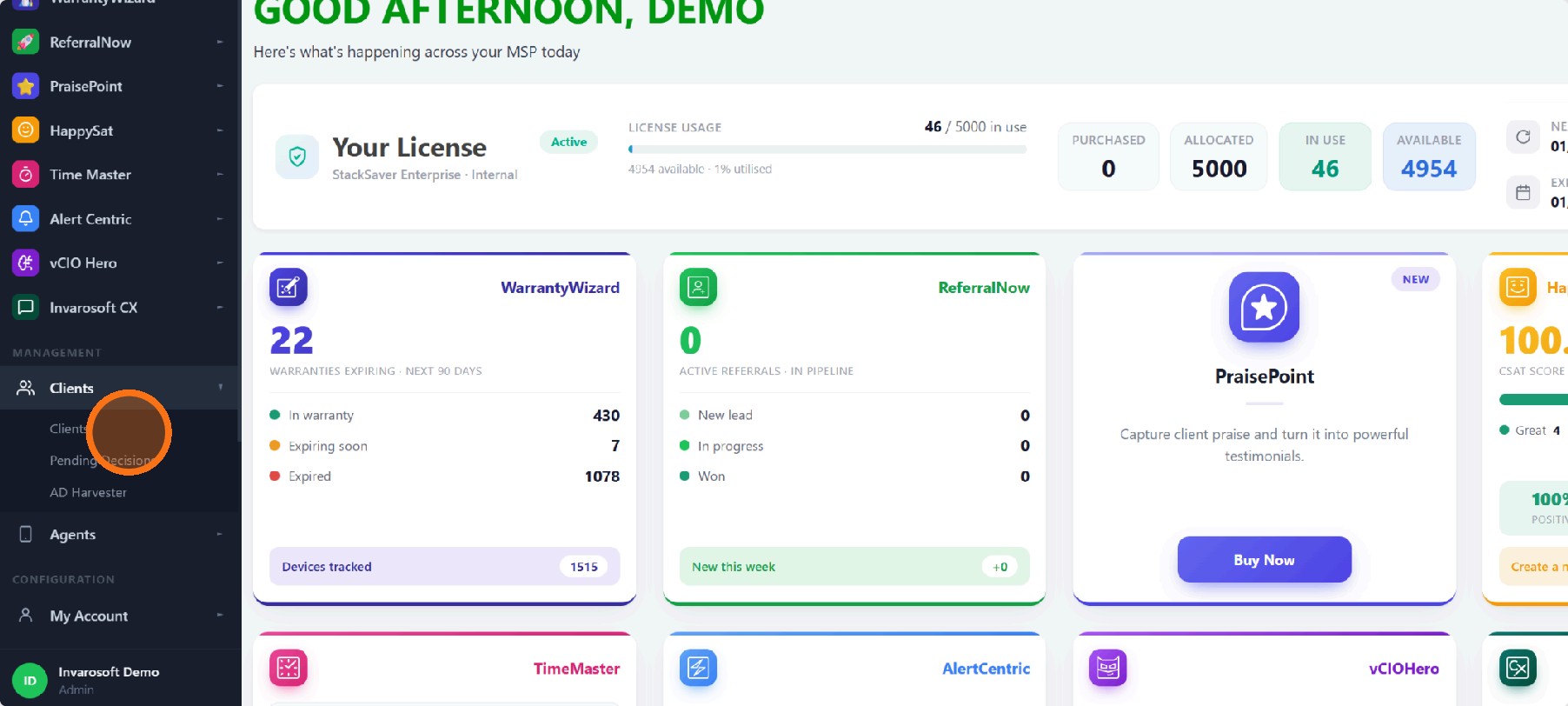
Sign in to the Invarosoft portal (portal.invarosoft.net) and, in the left menu under Management, click Clients and then Clients again to open your client list.
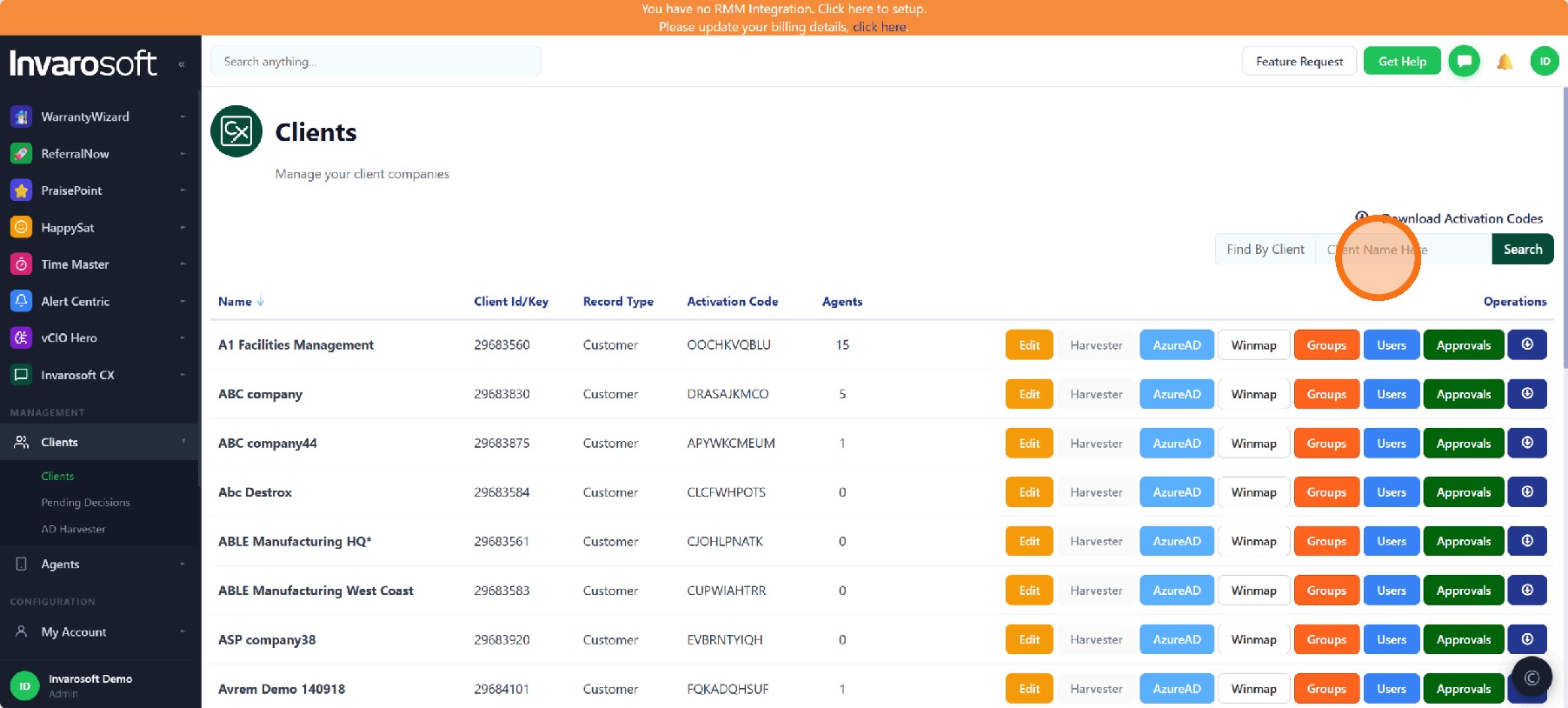
| Search for the client |
In the Find By Client box above the list, type the client's name (or part of it) and click Search. The list is filtered to the matching clients. Click Reset to show the full list again.
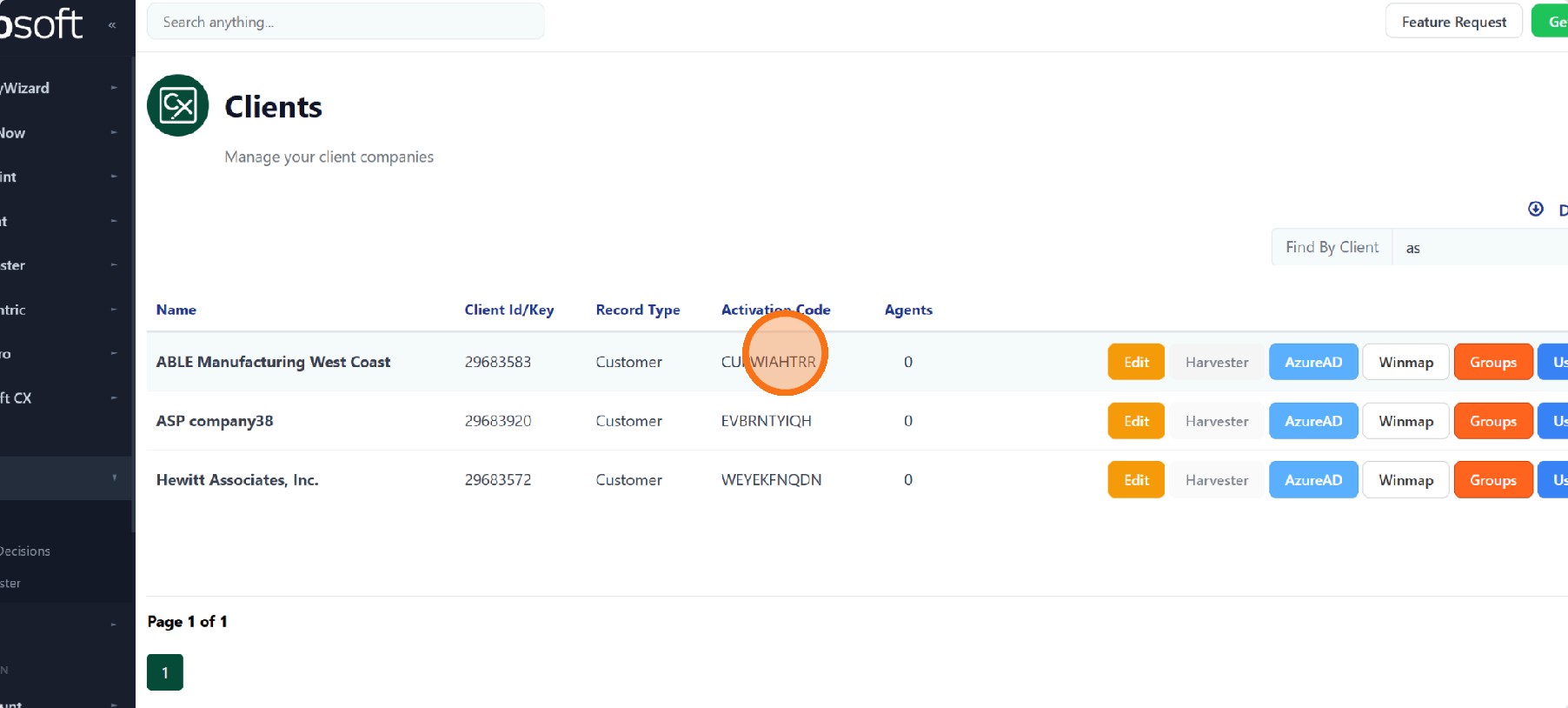
| Find the client's activation code |
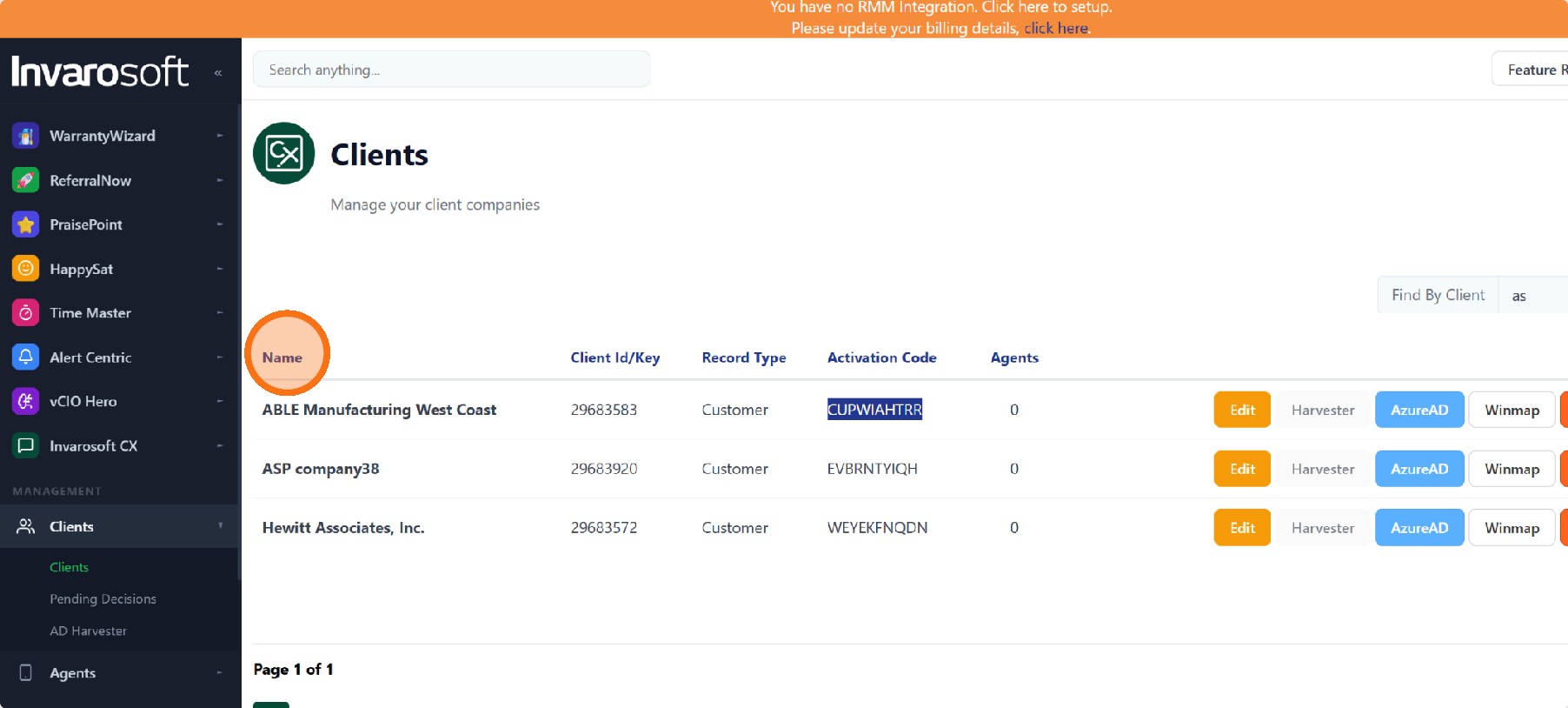
Locate the client's row and look at the Activation Code column. That 10-character code is the client's activation code — click on it to select it and copy it.
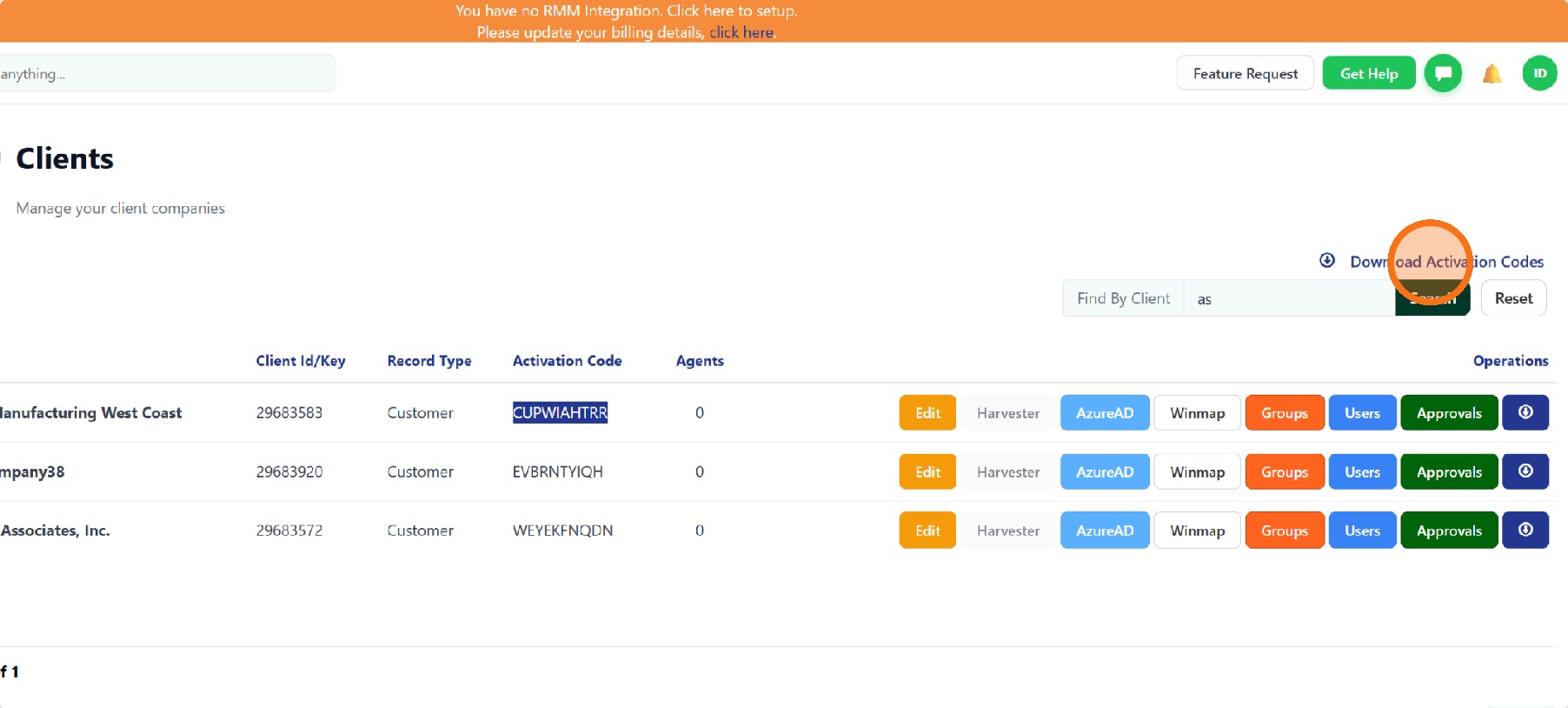
| Download the activation codes |
To export the activation codes, click Download Activation Codes, just above the search box. A file with the clients and their activation codes is downloaded to your computer.
| Sort the list by name (optional) |
If you prefer to browse instead of searching, click the Name column header to sort your clients alphabetically, then read each client's code in the Activation Code column.
| Done. You've found your client's activation code and can download the activation codes for your clients whenever you need them. |
Was this article helpful?
That’s Great!
Thank you for your feedback
Sorry! We couldn't be helpful
Thank you for your feedback
Feedback sent
We appreciate your effort and will try to fix the article