| Invarosoft CX · Client Portal |
How to Create or Edit a Client Portal
The Client Portal is integrated with O365 and fully customizable for each client. Unlike traditional SharePoint portals, it's built to highlight your brand, giving clients a fully branded experience. It can include Tickets, Approvals, Service Catalog, vCIO, O365 Licensing, Device Listing (desktops and laptops), Network Information, Knowledgebase & Training, Feedback, and Custom Pages. Adding documents, webforms, and service catalogs to the portal menu gives clients one central place to find every resource and form they need, which makes each interaction smoother and improves your overall service. This guide shows you how to create a client portal, set its home page, build its menus, and link each menu to the right content.
| Before you start: any document, webform, service catalog, or vCIO item you want to add to the portal must be created beforehand. These guides show you how: |
Watch it in action
This interactive walkthrough plays on its own — sit back and watch, or use the arrows at the bottom to skip ahead or replay a step.
Steps to follow
| Log in to the Invarosoft Admin Portal |
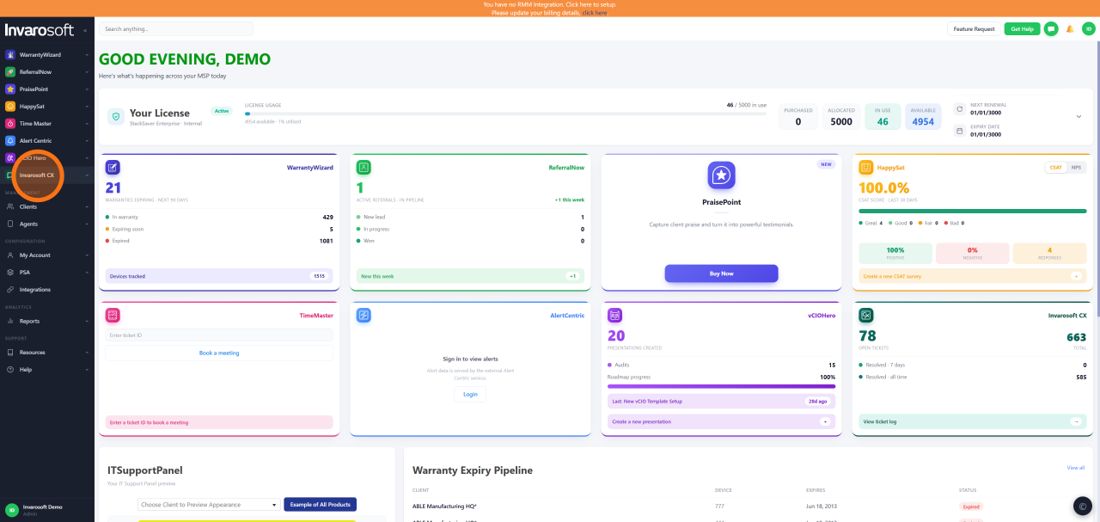
Go to portal.invarosoft.net and sign in with your Invarosoft account. You'll land on the main dashboard.
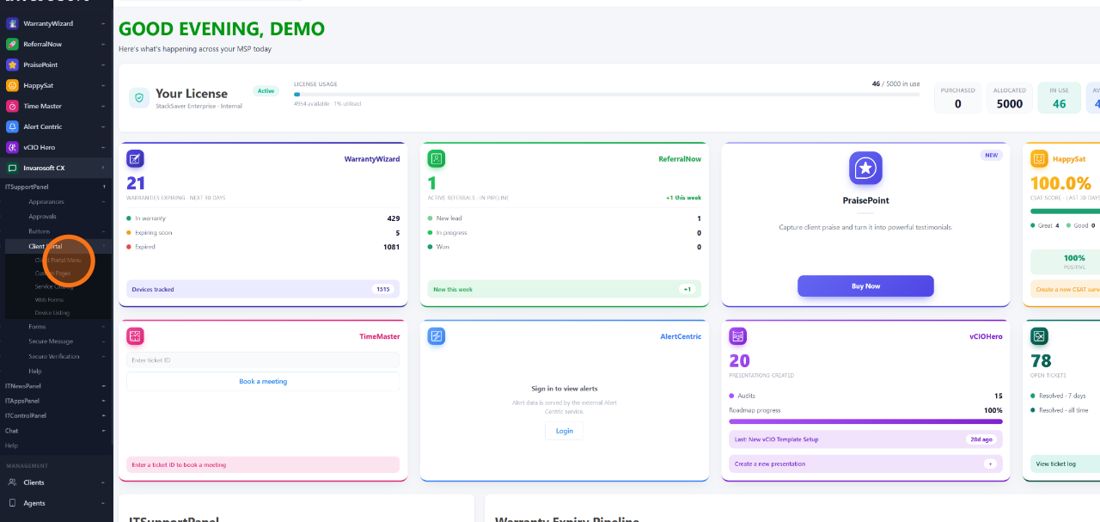
In the left sidebar, open Invarosoft CX, expand ITSupportPanel and Client Portal, then select Client Portal Menu.
Invarosoft CX → ITSupportPanel → Client Portal → Client Portal Menu
| Create, copy, or edit a menu collection |
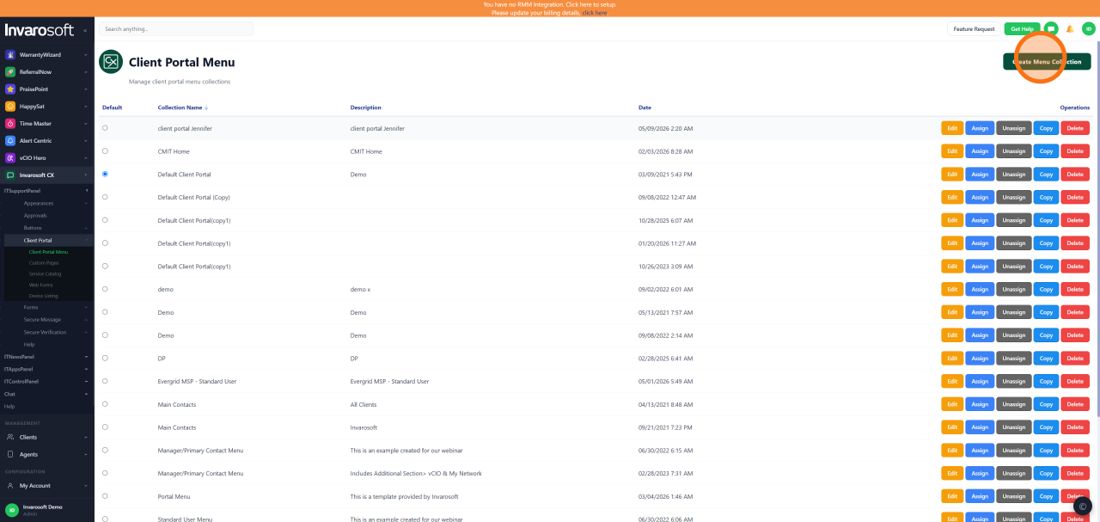
Click Create Menu Collection in the top-right corner to start a new client portal. You can also click Copy on an existing collection to use it as a starting point, or Edit to change one you already have (if you edit, continue from step 5).
| Enter a title and description, then click Create |
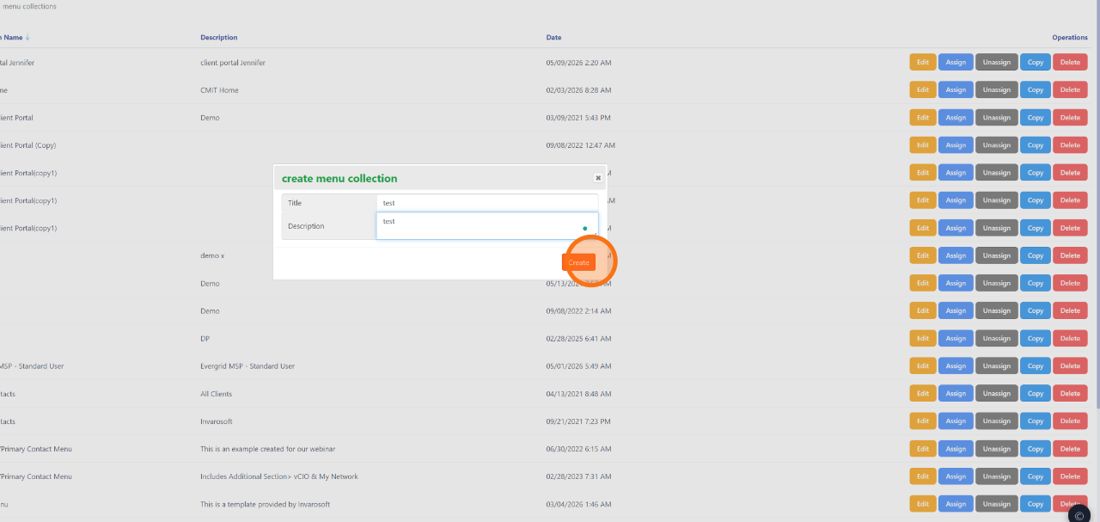
In the create menu collection window, type a Title and a short Description for this portal, then click Create.
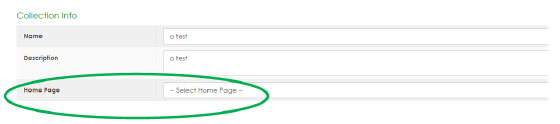
Under Collection Info, use the Home Page dropdown to choose the document clients will see when they open the portal. If you leave it empty, the default home page is used.
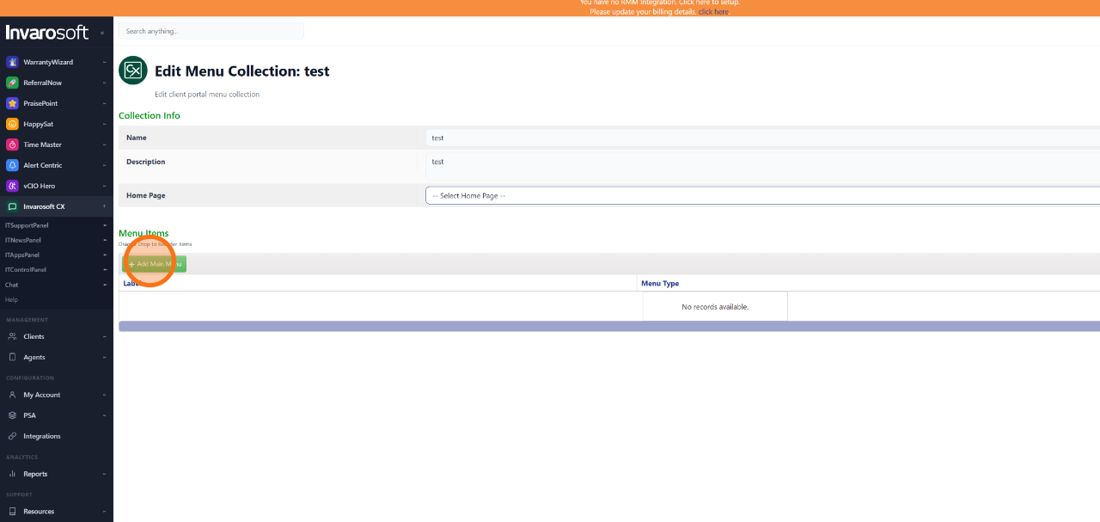
Customize the portal by adding menus and sub-menus that open different resources, such as documents (custom pages), Webforms, Service Catalogs, vCIO, Ticket View, O365 Reports, URLs, and more. In the Menu Items section, click Add Main Menu.
| Label the main menu and click Update |
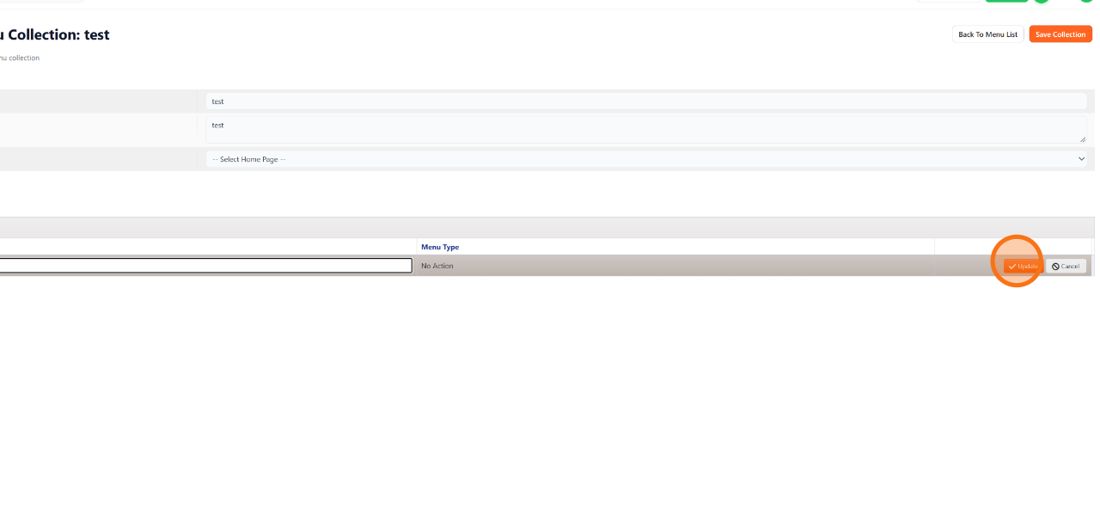
Type the Label clients will see in the portal menu, then click the orange Update button to save the row.
| Add a sub-menu (optional) |
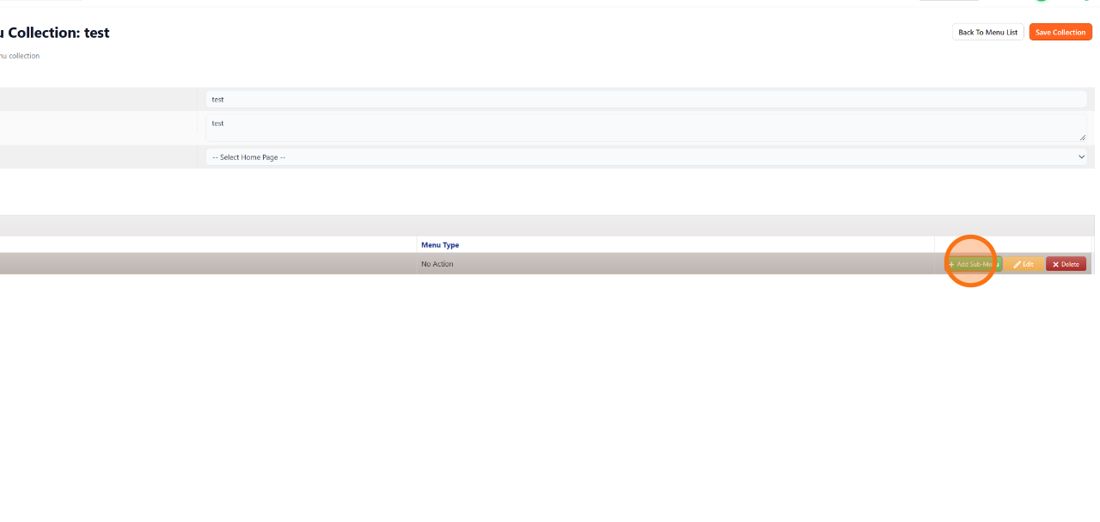
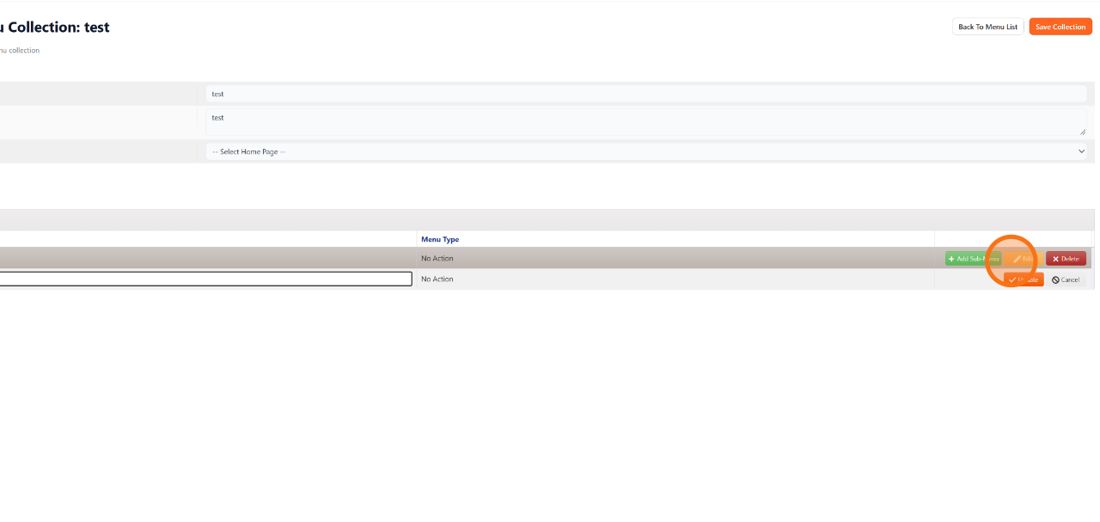
To nest items under a main menu, click the green Add Sub-Menu button on its row. Skip steps 8.1 and 8.2 if this menu doesn't need sub-items.
| Enter the sub-menu label and click Update |
A new empty row appears under the main menu. Type the sub-menu Label and click Update to save it.
| Assign the sub-menu's action |
The sub-menu now appears indented under its main menu. To choose what it opens, click Edit on the sub-menu's row and follow the same process described in steps 10 and 11.
| Click Edit on the menu item |
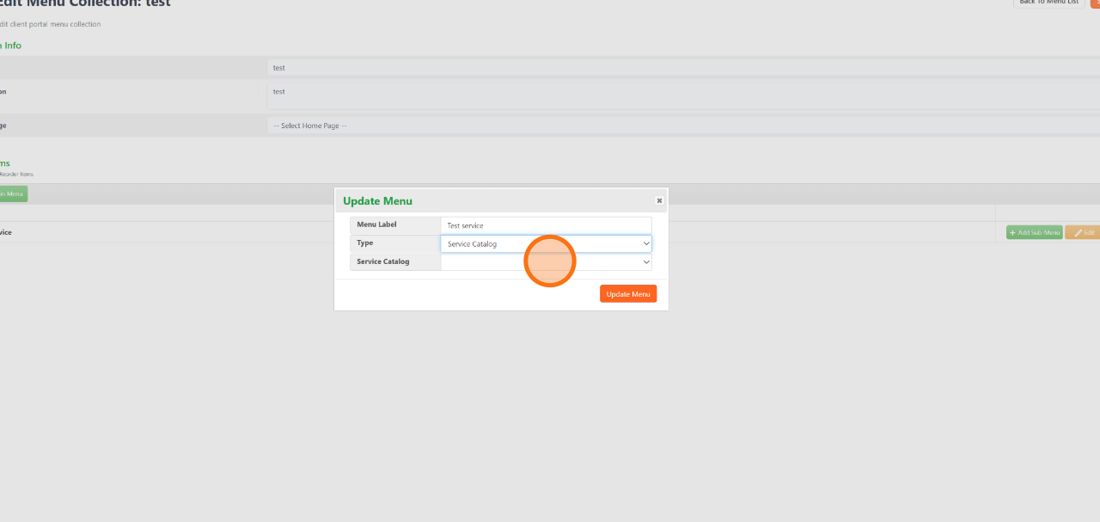
Click the Edit button on the main menu or sub-menu you want to configure to open the Update Menu window.
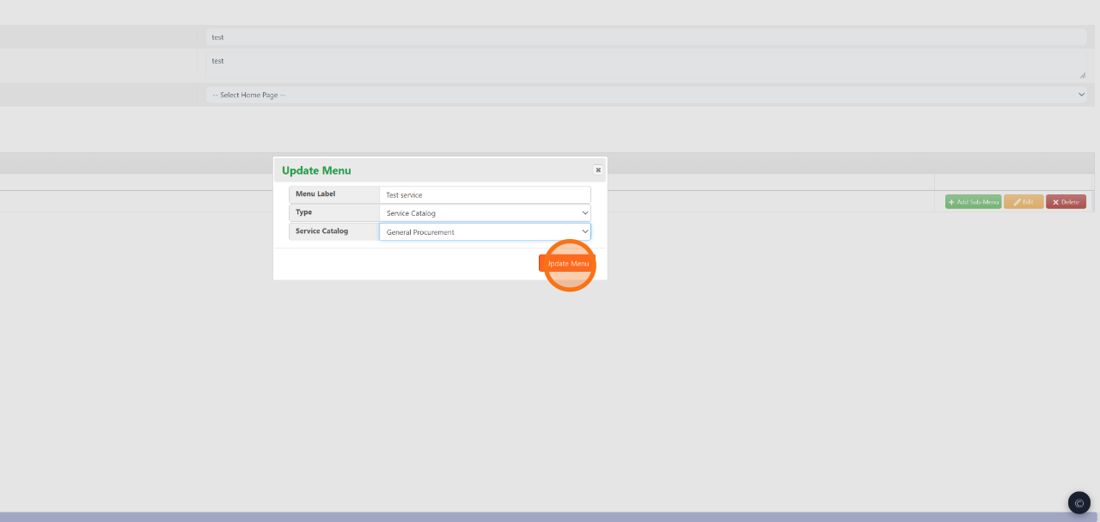
In the Update Menu window, choose the Type of content this menu opens. Depending on the type, a new field appears below so you can pick the specific item, for example the Service Catalog, web form, or document you want clients to see. Steps 10.1 and 10.2 show the full list of types and an example.
Tip: web forms, documents, service catalogs, and vCIO items must be created beforehand. You'll find the guides to create them in the Before you start box at the top of this article.
| Review the available menu types |
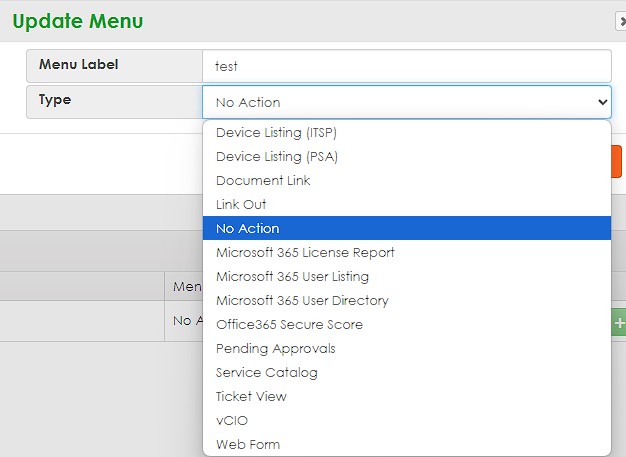
These are the types you can assign to a menu or sub-menu:
- Document Link: opens a custom document page.
- Web Form: opens one of your web forms.
- Service Catalog: opens a service catalog.
- vCIO: shows vCIO audits and presentations.
- Ticket View and Pending Approvals: show the client's tickets and approvals.
- Device Listing (ITSP) and Device Listing (PSA): show the client's desktops and laptops.
- Microsoft 365 License Report, Microsoft 365 User Listing, Microsoft 365 User Directory, and Office365 Secure Score: show O365 information.
- Link Out: opens an external URL.
- No Action: the menu works only as a header for its sub-menus.
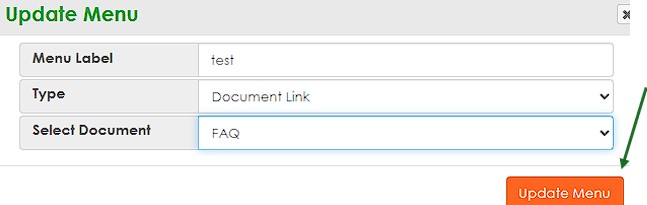
If you choose Document Link, a Select Document field appears. Pick the document (for example, FAQ) and continue with step 11. Web Form and Service Catalog work the same way, each with its own selection field.
Click Update Menu to apply the changes to the item.
| Expand or collapse a main menu |
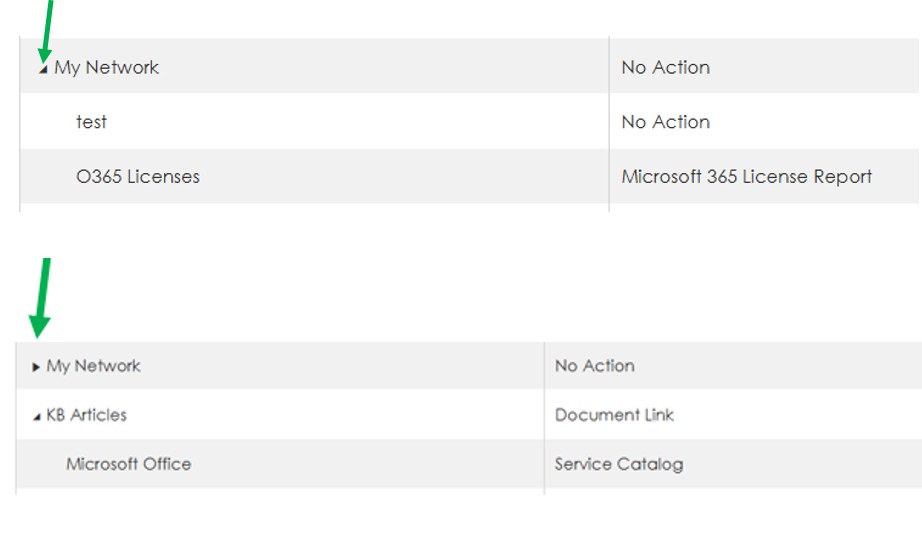
To see only the main menus without their sub-menus, use the arrow to the left of each main menu item. Click it to expand and show its contents, or to collapse and hide them.
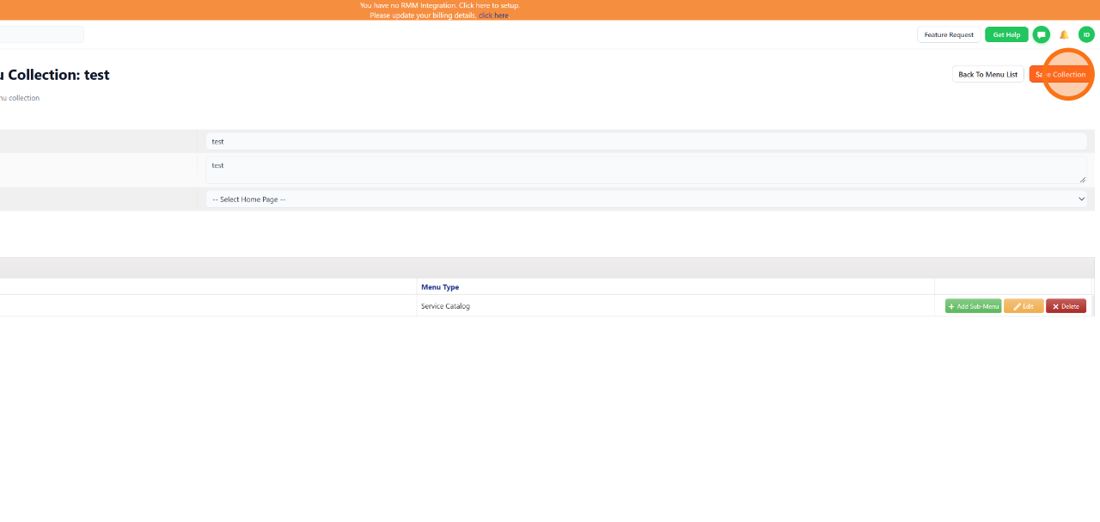
Repeat steps 6 to 11 for everything you want to add. When you finish, click Save Collection in the top-right corner. You'll return to the Client Portal Menu list with a Menu Updated Successfully message.
Your portal is ready, but clients will only see it once it's assigned to them. Follow this guide to assign or unassign it.
Related guide
Step-by-step guide to choosing which clients see this portal.
Result
| Done. Your client portal is created with its own home page and menus; every document, webform, and service catalog is one click away for your clients, and the portal is ready to be assigned. |
Invarosoft · Invarosoft CX documentation