Accessing Devices in Warranty Wizard
This workflow explains how to access Warranty Wizard within an Invarosoft instance and how to navigate its main sections to view, analyze, and download warranty and device reports for customers, including warranty status, estimated value, and detailed device information.
Step 1
Access the Instance. Go to https://portal.invarosoft.net/
Step 2
From the main interface, click the green bar labeled “Warranty Wizard”.
This opens the main dashboard, which provides a high-level overview of warranty information.

Step 3
From the dashboard, there are two ways to navigate:
Option A: Top-right Buttons
In the top-right corner, click one of the blue buttons:
Client Report (to view device information by client)
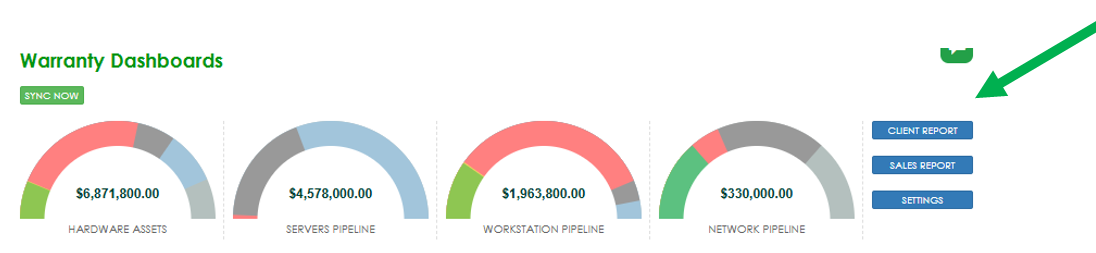
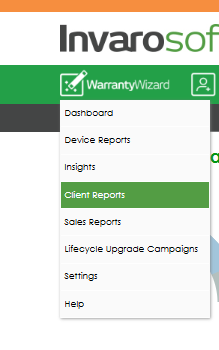
Option B: Dropdown Menu
Hover over Warranty Wizard in the header and select Client Report from the dropdown menu.
Step 4
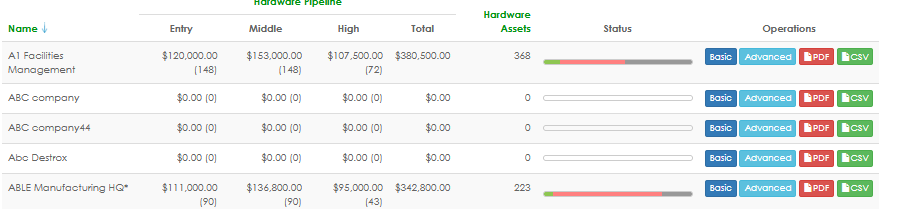
Client Report Overview (Customer List)
The Client Report view displays a list of customers with a general overview, including: Total number of devices, Estimated total value, Status bar showing an approximate breakdown.
Step 5
Search for a Specific Customer: Use the “Find by client” search field located in the top-right corner to quickly locate a specific customer.

Step 6
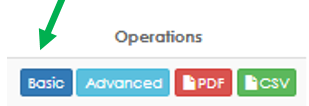
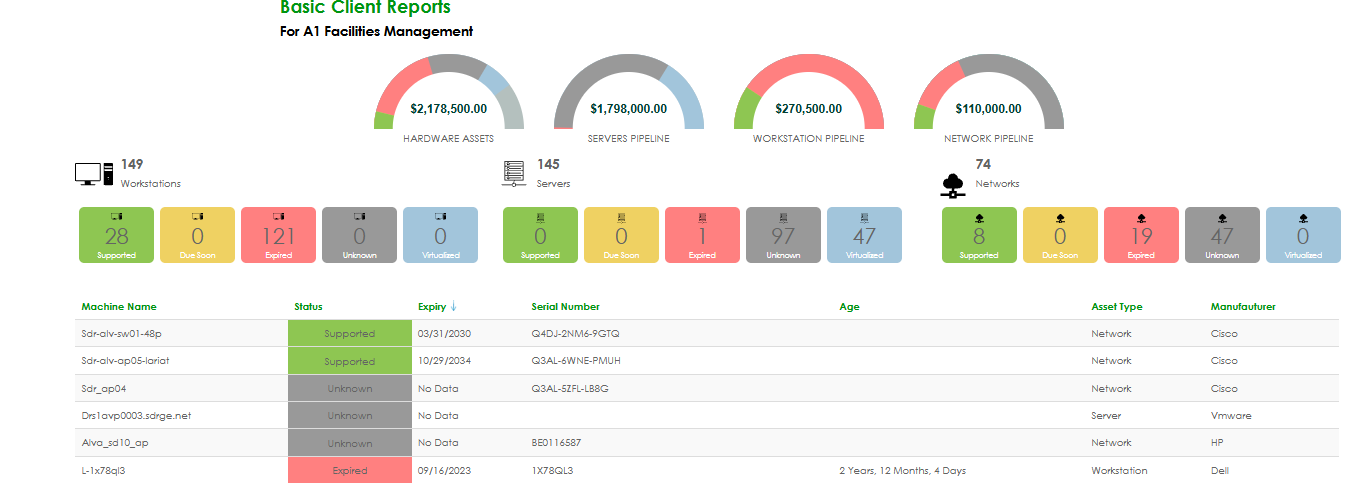
View the Basic Report: Click on Basic button displays a summarized view of each reported device. This report is intended for quick, high-level review.
Step 7
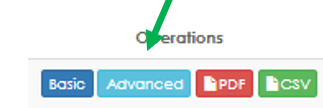
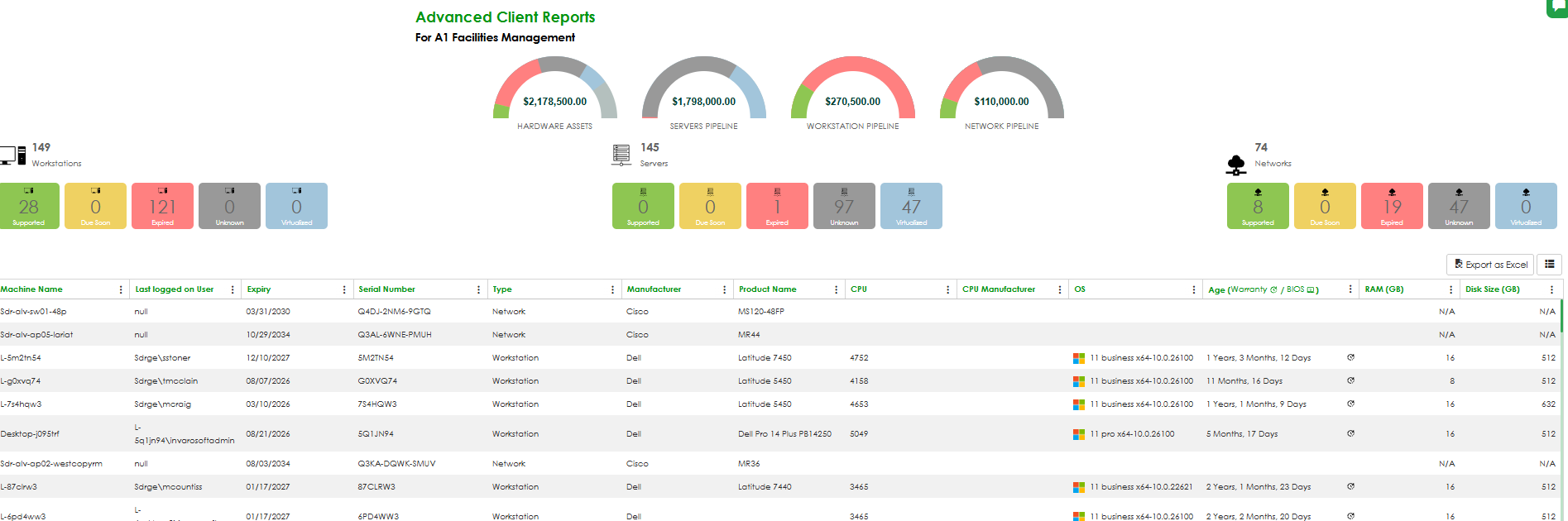
Selecting the Advanced button provides more detailed information for each device. This report is intended for deeper technical analysis.
Step 8
Was this article helpful?
That’s Great!
Thank you for your feedback
Sorry! We couldn't be helpful
Thank you for your feedback
Feedback sent
We appreciate your effort and will try to fix the article