How to Create and Configure a Referral Campaign
Campaigns is where you bring everything else in ReferralNow together: a name and timeframe, the rewards referrers and clients earn, the email notifications they receive, and the look of your Refer Now button or banner. This guide walks you through creating a new campaign from start to finish, and shows you where to make changes to it later.
| Before you start: a campaign pulls in rewards, email templates, and a design that you set up elsewhere in ReferralNow. Make sure you've already completed: |
Watch it in action
This interactive walkthrough plays on its own — sit back and watch, or use the arrows at the bottom to skip ahead or replay a step.
Steps to follow
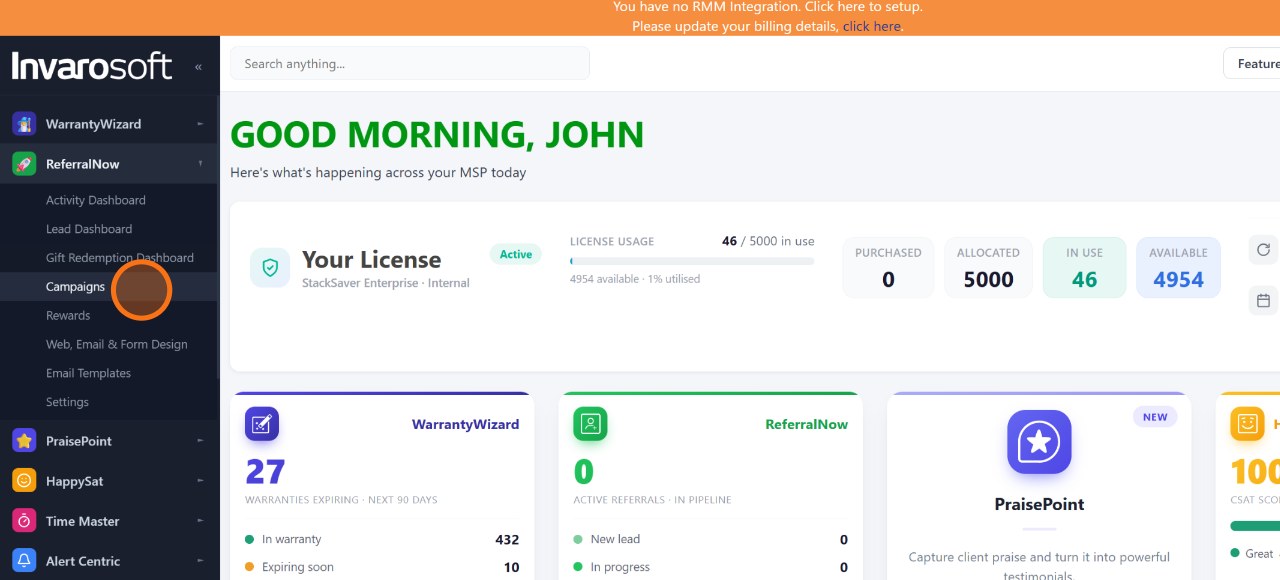
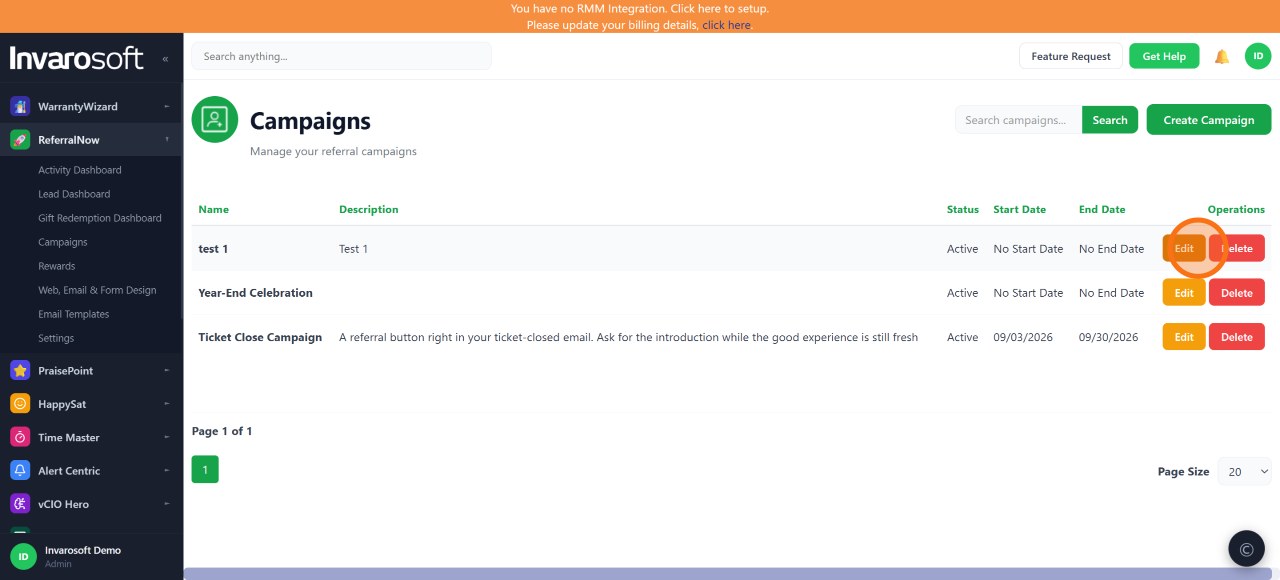
From the left menu, open ReferralNow and select Campaigns to see all your existing campaigns.
ReferralNow → Campaigns
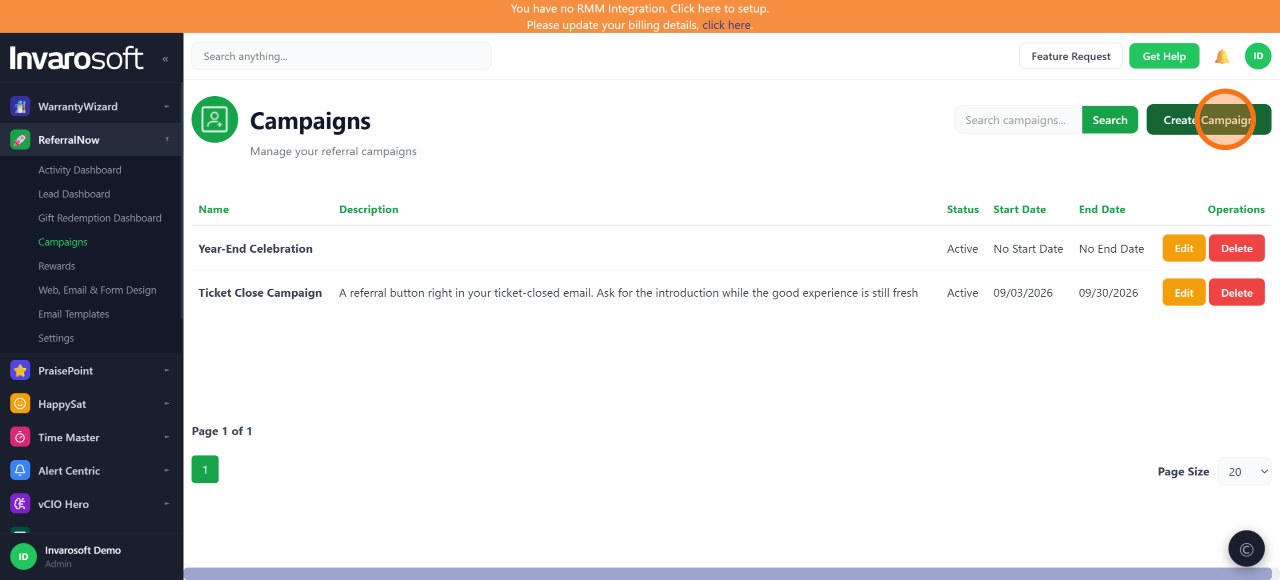
Click Create Campaign to open the campaign setup wizard.
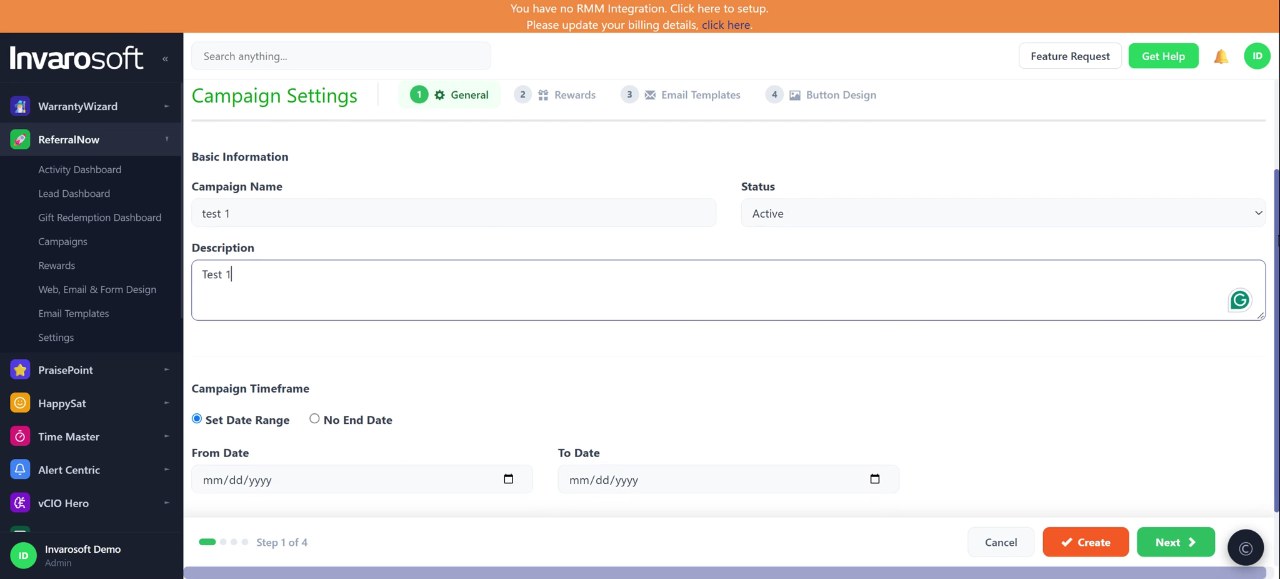
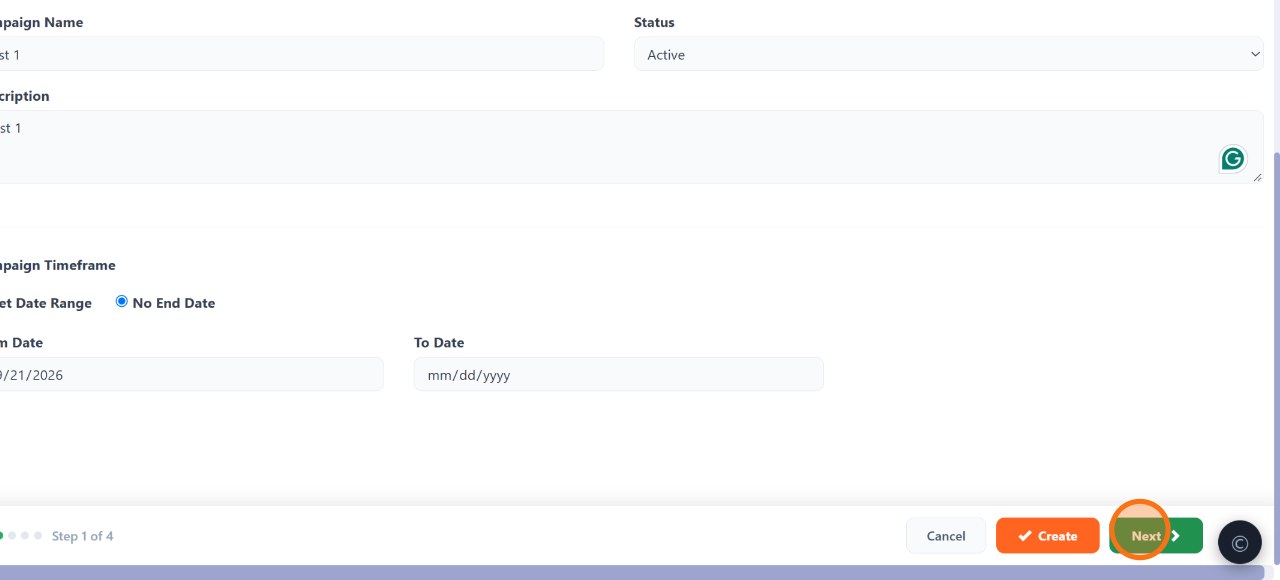
On the General tab, enter a Campaign Name and a Description so your team can tell campaigns apart later.
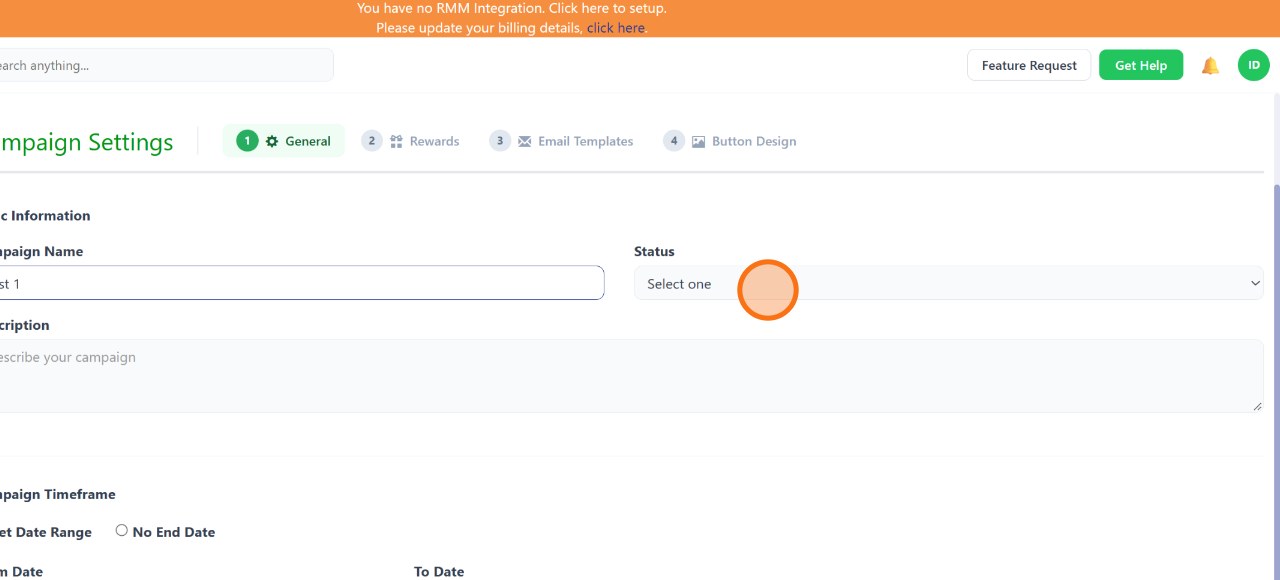
Choose Active, Draft, or Inactive from the Status dropdown, depending on whether the campaign should go live right away.
| Set the campaign timeframe |
Pick a From/To date range, or choose No End Date to keep the campaign running indefinitely. Click Next to continue.
| Set the default referrer and client rewards |
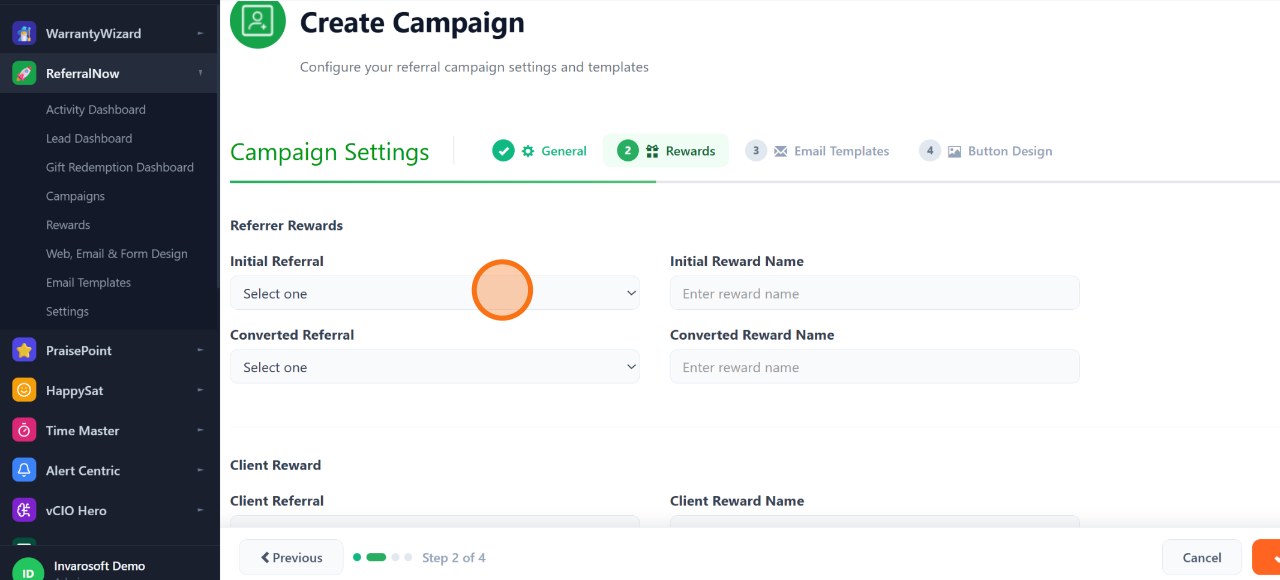
On the Rewards tab, choose the Initial Referral Reward, Converted Referral Reward, and Client Reward from the dropdowns. These options come from the rewards you already created in Rewards.
| Configure tiered rewards for repeat referrals (optional) |
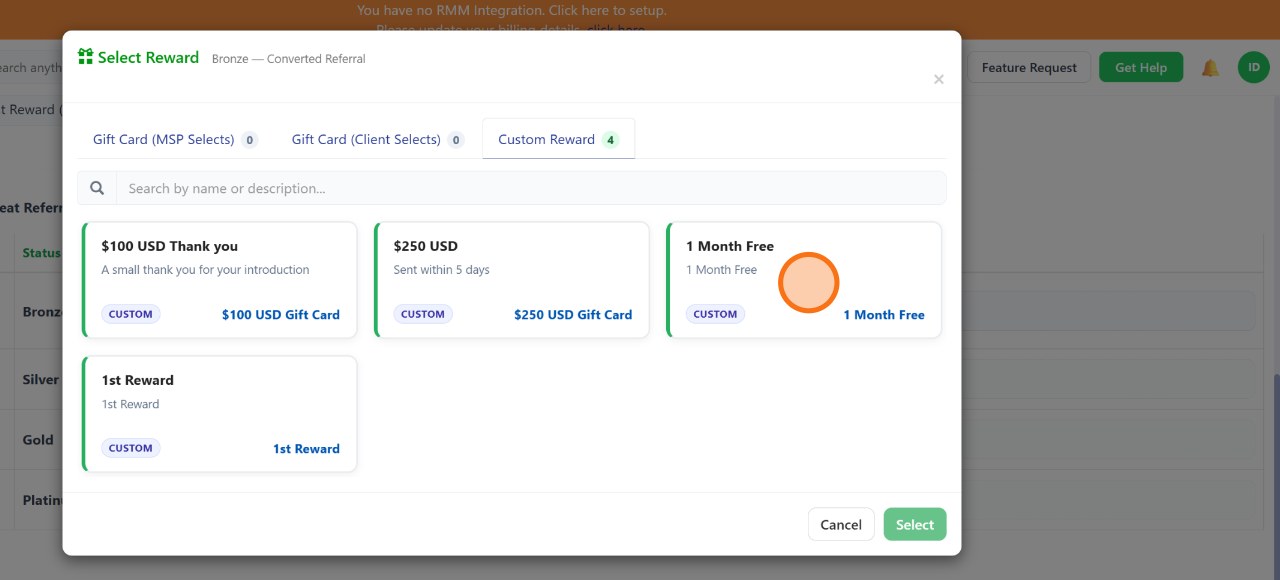
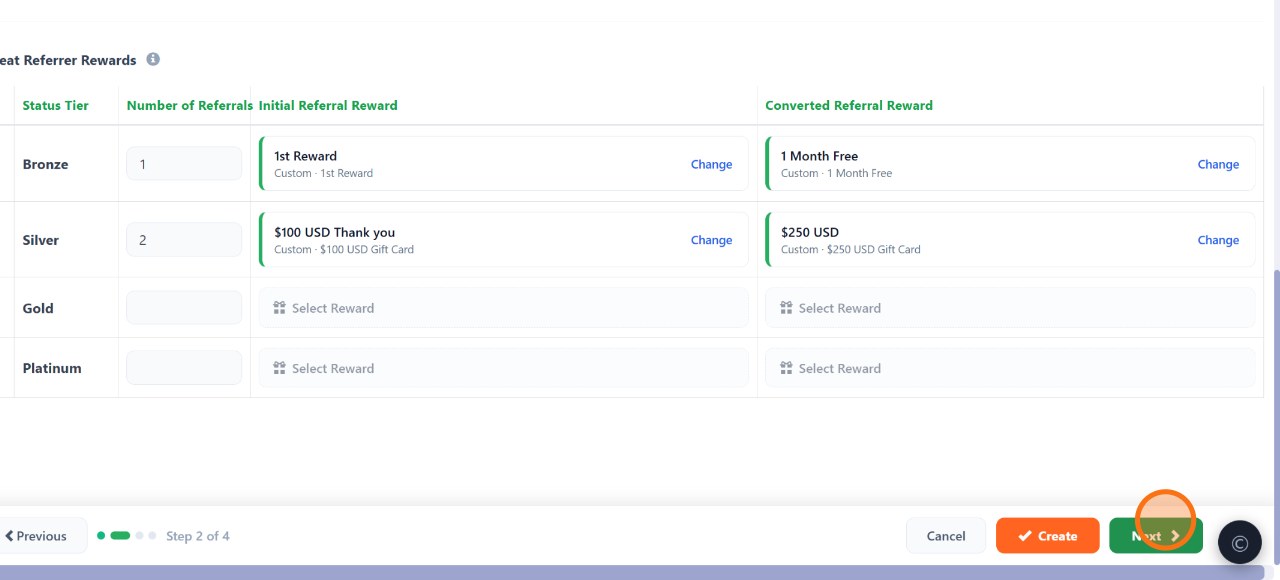
In Repeat Referrer Rewards, set the number of referrals needed to reach each tier (Bronze, Silver, Gold, Platinum), then click Select Reward to choose the Initial and Converted reward for that tier. Repeat for each tier you want to reward.
| Continue to Email Templates |
Click Next to move from the Rewards tab to the Email Templates tab.
| Set referrer and referee notification templates |
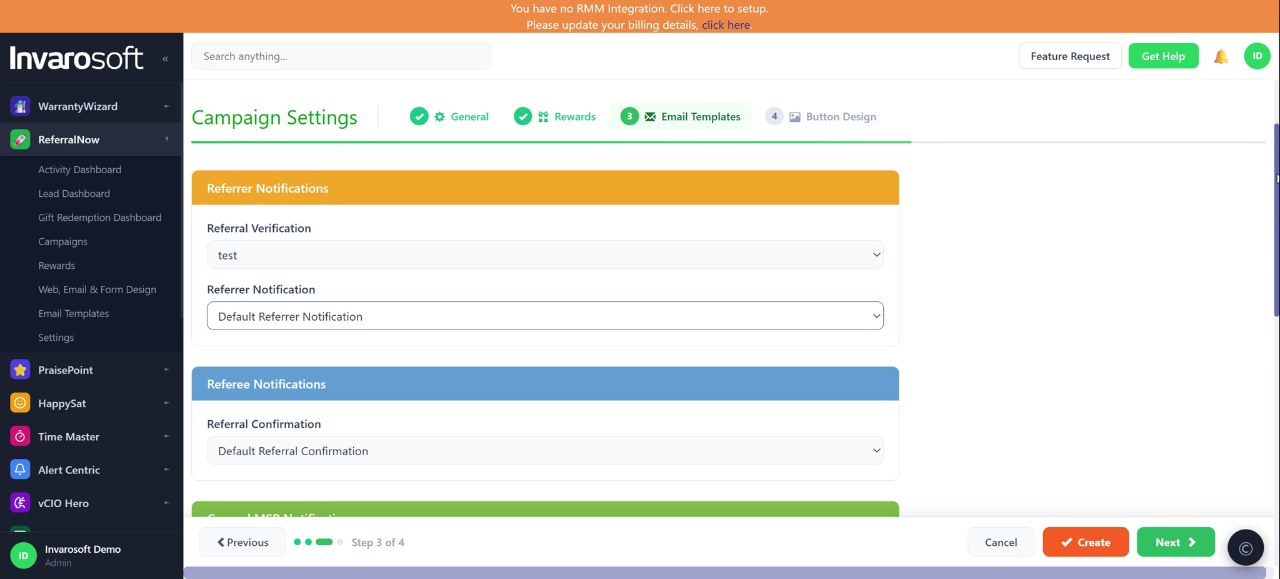
Under Referrer Notifications, choose the Referral Verification and Referrer Notification templates. Under Referee Notifications, choose the Referral Confirmation template. These templates come from Email Templates.
| Set general and reward notification templates (optional) |
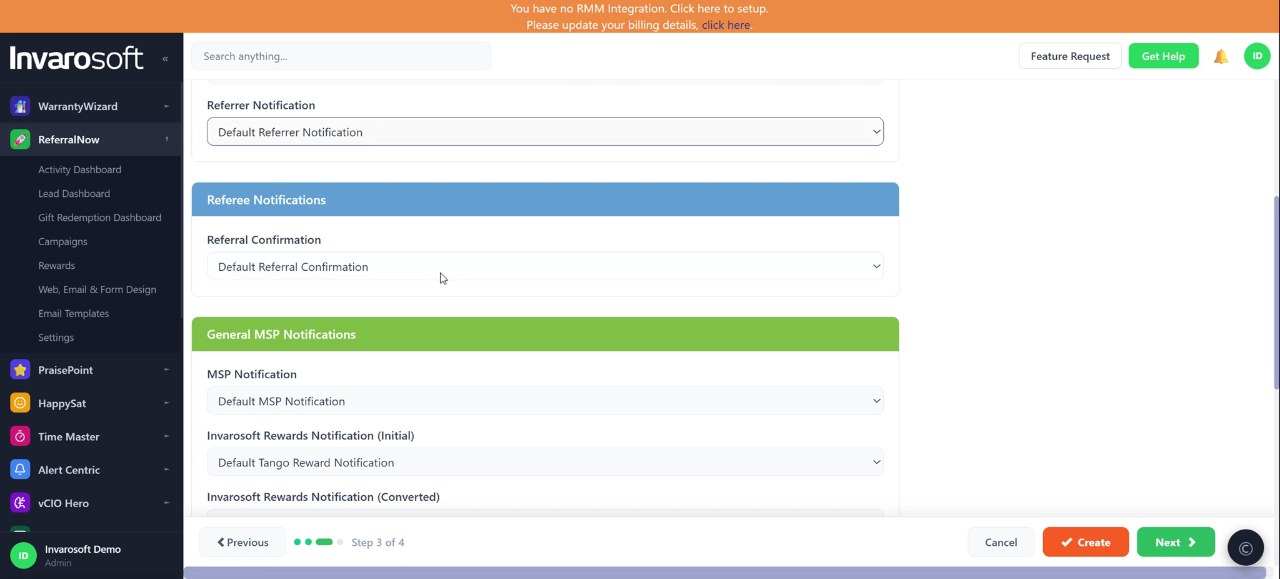
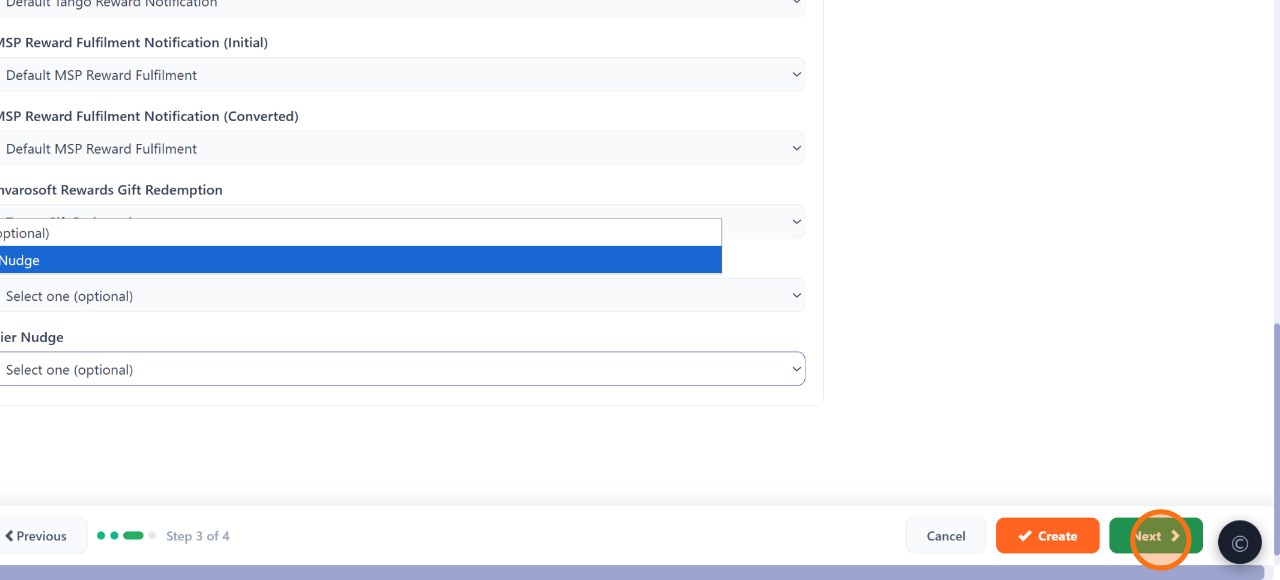
Under General MSP Notifications, choose templates for MSP Notification, Reward Fulfillment, and Gift Redemption. If you're using tiered rewards, you can also set Tier Achievement and Tier Nudge notifications here.
| Continue to Button Design |
Click Next to move from Email Templates to the Button Design tab.
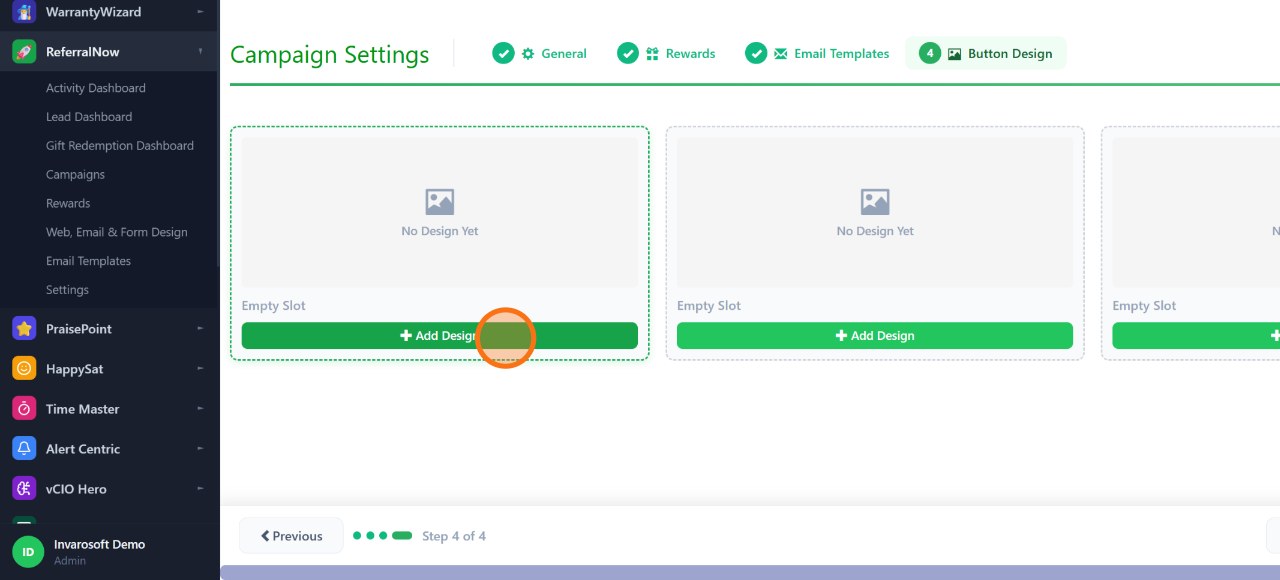
Click Add Design to start customizing the Refer Now button or banner your referrers and clients will see.
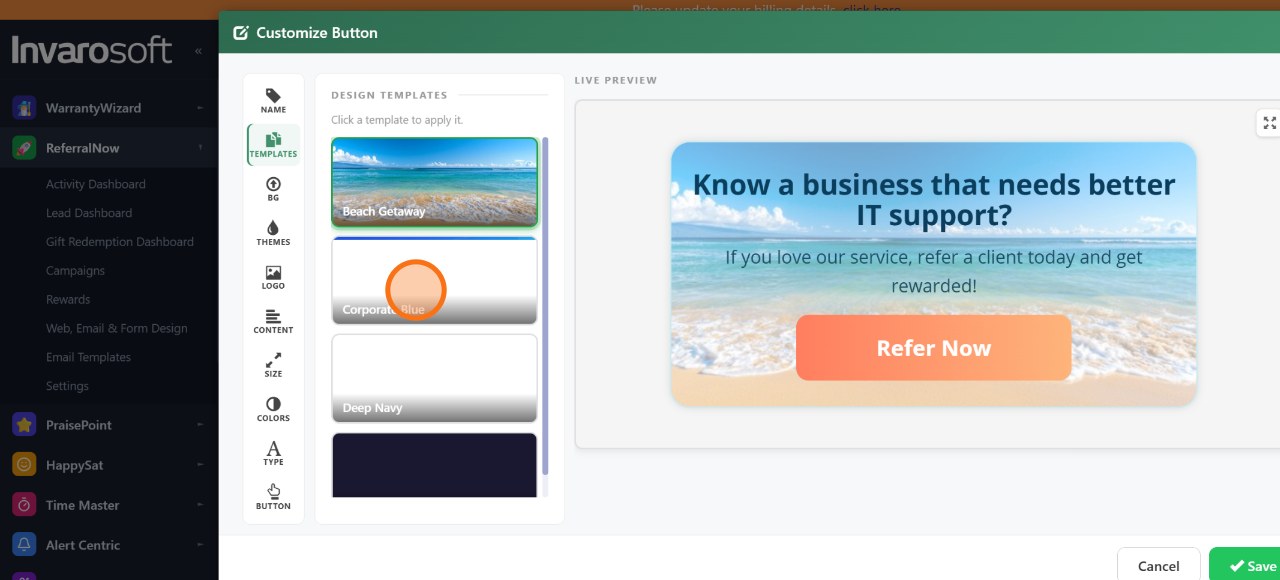
Under Templates, choose one of the quick themes (like Corporate Blue or Deep Navy) to apply a ready-made color scheme, or skip this and set colors manually in a later step.
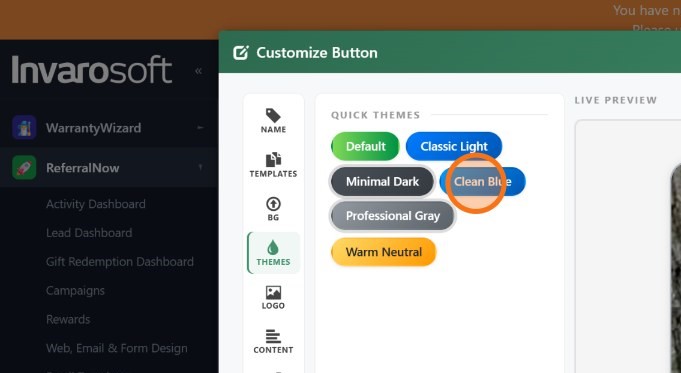
Under Themes, pick one of the built-in backgrounds (Classic Light, Minimal Dark, Clean Blue, Professional Gray, Warm Neutral), or upload your own background image instead.
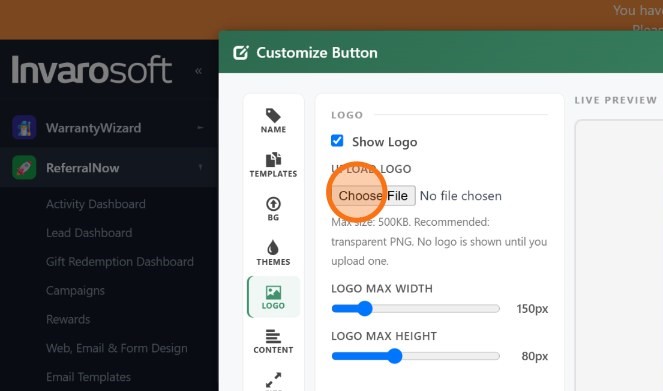
Under Logo, upload your logo image and adjust its Width and Height so it fits well on the button or banner.
| Set colors and typography |
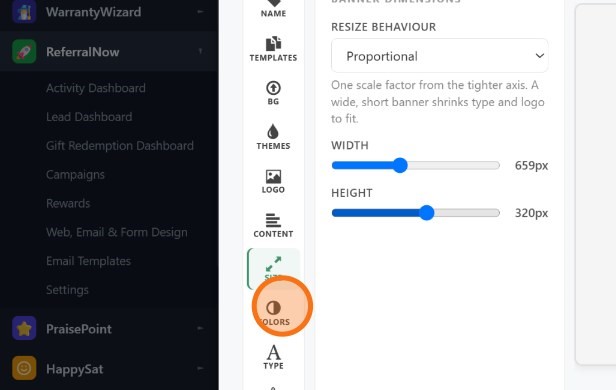
Under Colors, set the background, title, description, button, and border colors. Under Type, set the font size and weight for the title, description, and button text. The live preview on the right updates as you go.
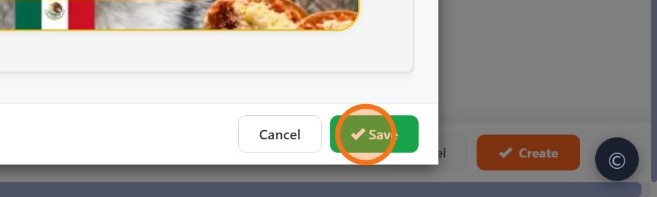
Click Save. Your design is added as a slot on the Button Design tab, where you can edit or delete it, or add more designs later.
| Continue to get your embed code |
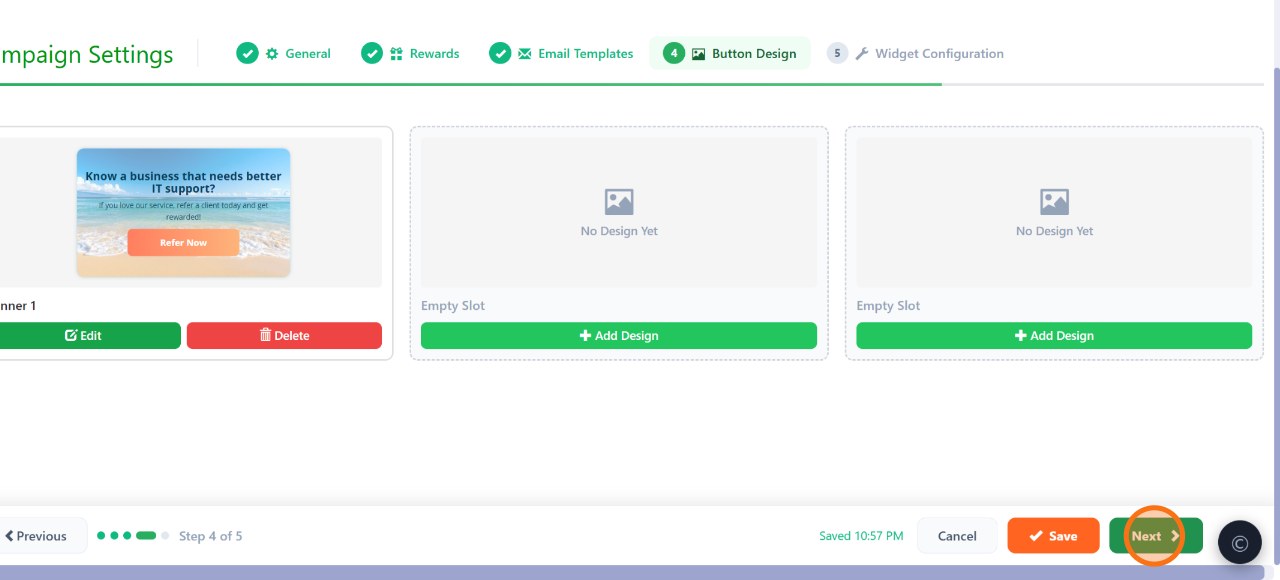
Click Next to move from Button Design to the Widget Configuration tab.
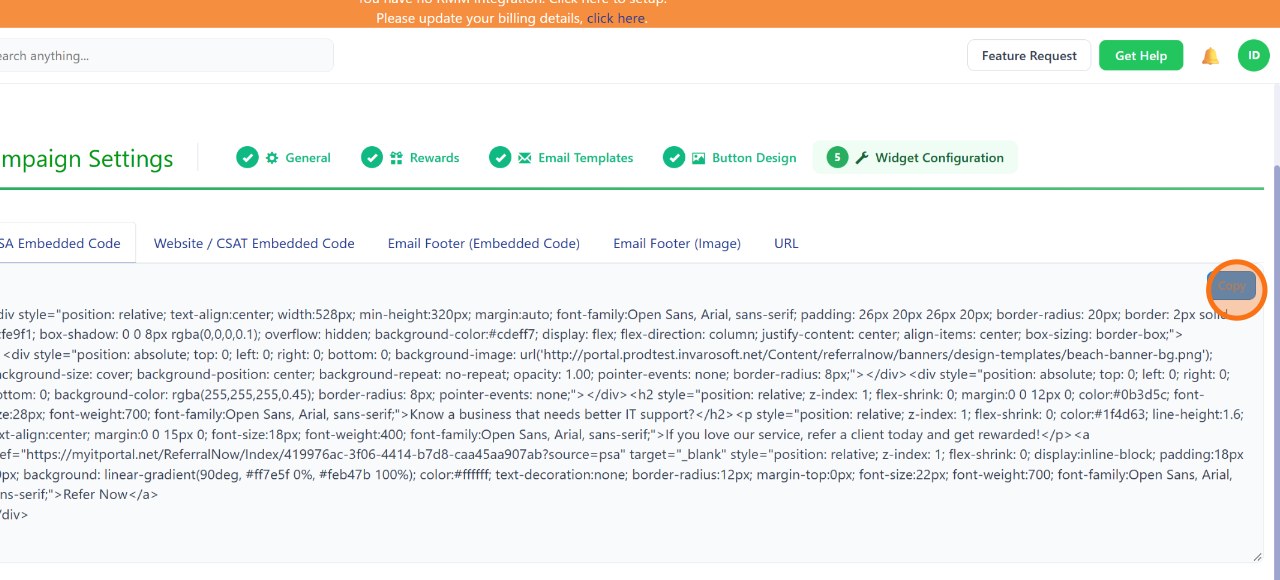
| Copy your embed code or link |
Copy the SPA Embedded Code, Website/CSAT Embedded Code, Email Footer code or image, or the direct URL, depending on where you want to publish your Refer Now button or banner.
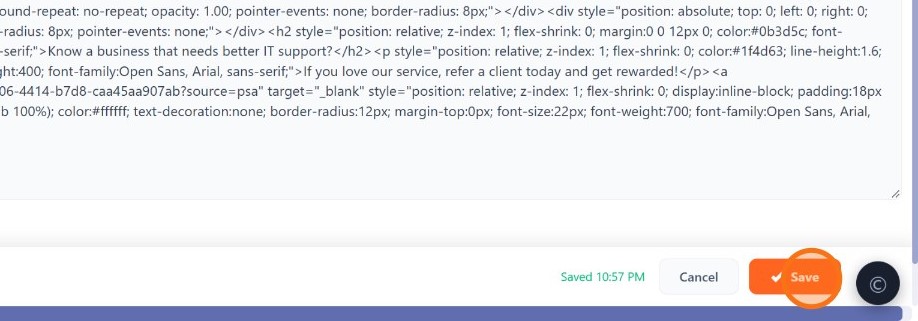
Click Save to finish creating the campaign. It now appears in your Campaigns list.
From the Campaigns list, click Edit on any campaign to reopen the same General, Rewards, Email Templates, Button Design, and Widget Configuration tabs and make changes at any time.
Result
| Done. You've created a referral campaign with its own rewards, notification emails, and a branded Refer Now button or banner ready to publish anywhere you like. |
Invarosoft · ReferralNow documentation