| ReferralNow · Settings |
How to Set Up Email Integration in ReferralNow
Email integration connects ReferralNow to your own mail provider, so referral invites, updates, and rewards go out from an address your clients already recognize. This guide walks you through connecting your account, from choosing your provider to saving your settings.
This interactive walkthrough plays on its own — sit back and watch, or use the arrows at the bottom to skip ahead or replay a step.
| Open ReferralNow |
From your Invarosoft dashboard, click ReferralNow in the left-hand menu to enter your referral management hub.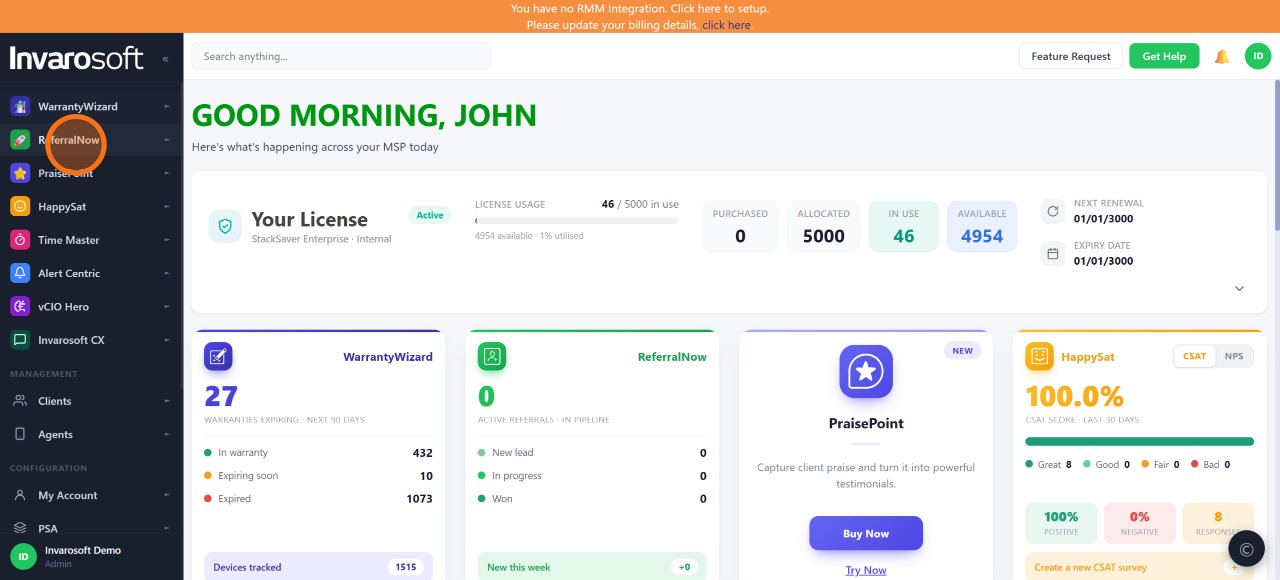
| Open Settings |
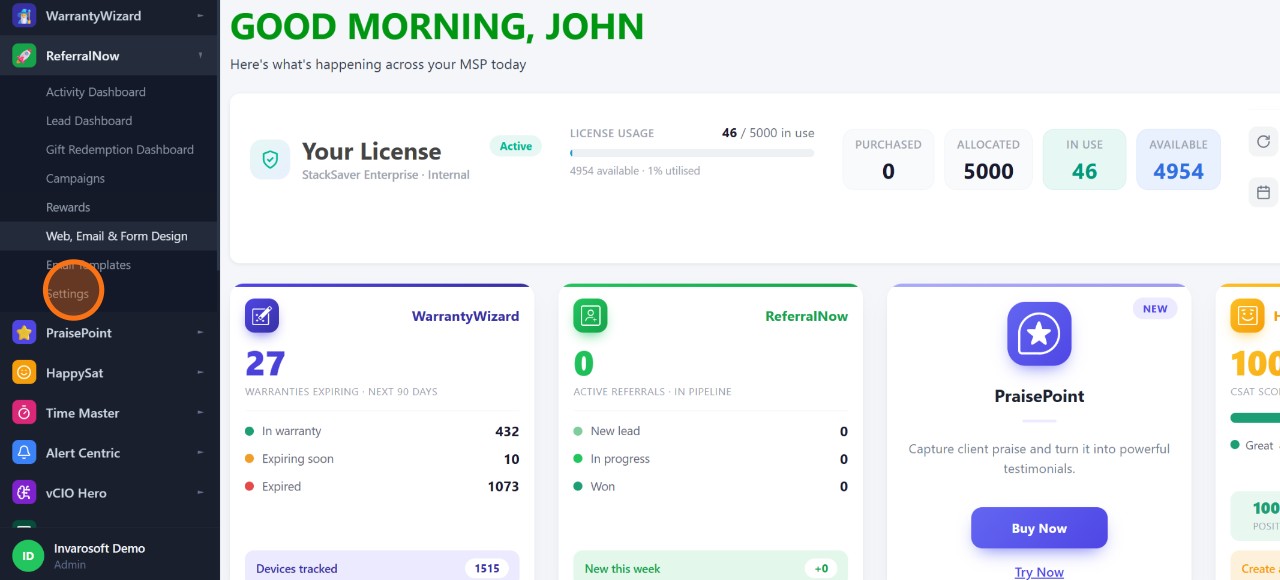
Expand the ReferralNow menu and select Settings to access the configuration options for your referral program.
| Choose your email provider |
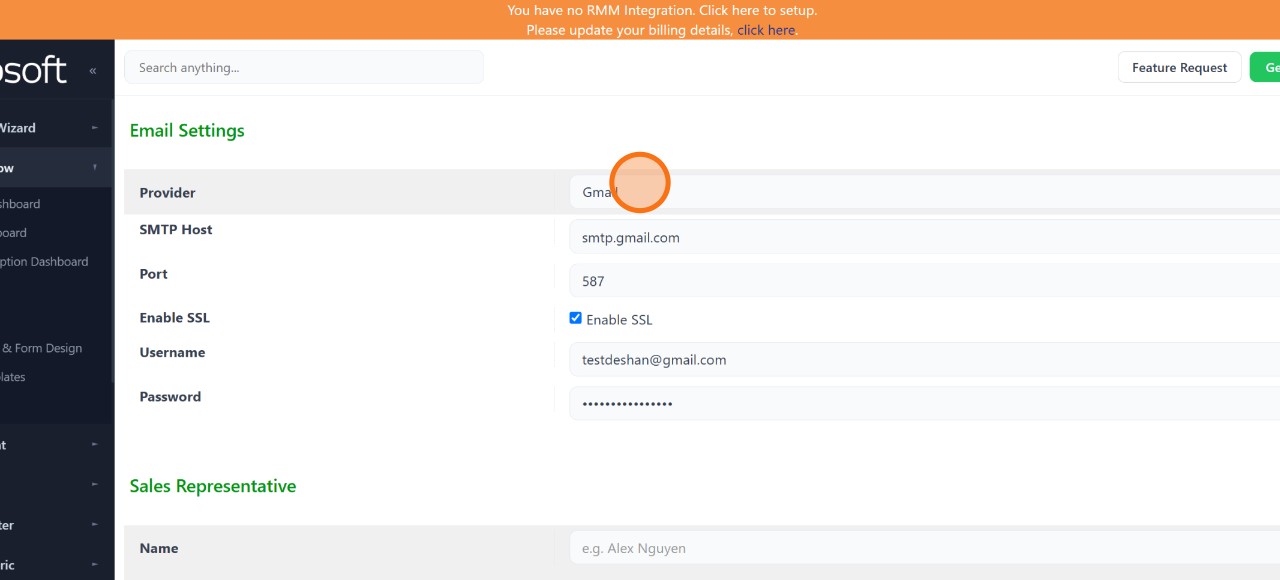
In the Email Settings section, use the Provider dropdown to select the mail service you already use — Microsoft 365, Gmail, Outlook, Yahoo, or a custom domain.
| Enter your SMTP connection details |
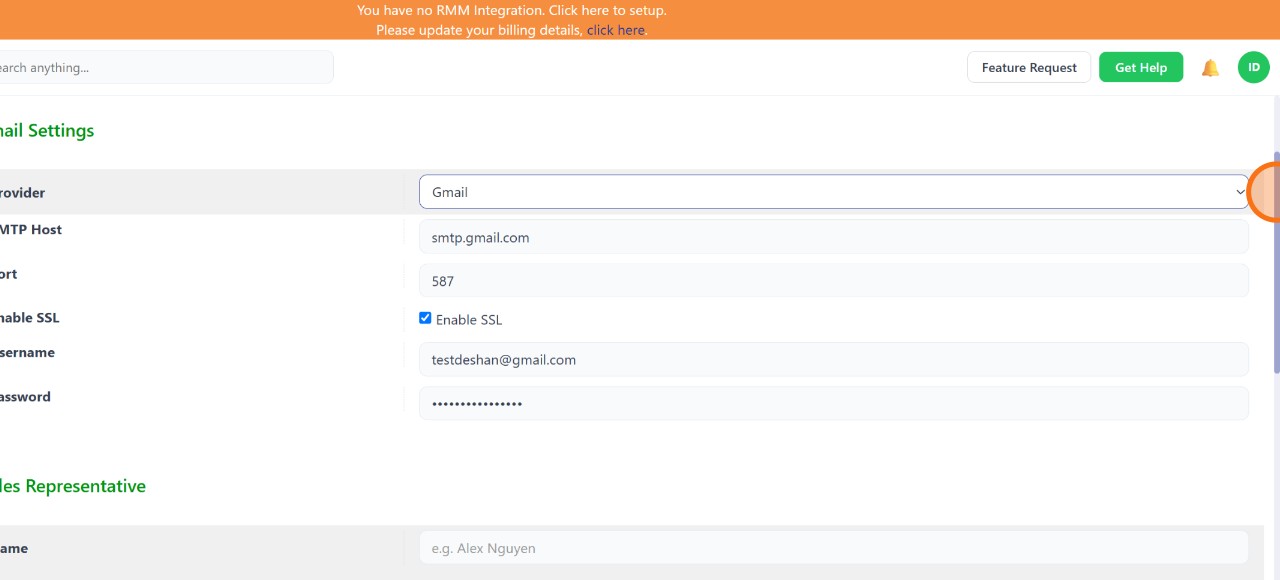
For common providers, the SMTP Host, Port, and Enable SSL fields fill in automatically. Enter the Username and Password (or app password) for the account you want to send referral emails from.
| Set your sender name |
Under Sales Representative, enter the Name that clients will see as the sender on referral emails.
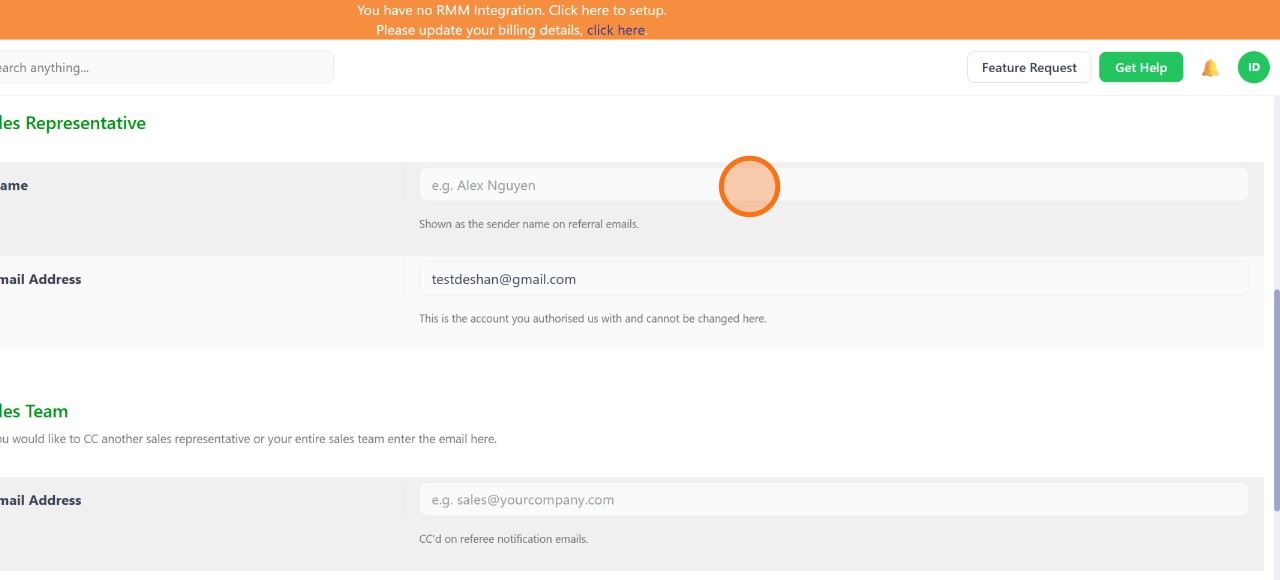
| Confirm your authorized email address |
Your authorized email address appears automatically under Email Address — this is where any replies from clients will be delivered, and it can't be edited from this screen.
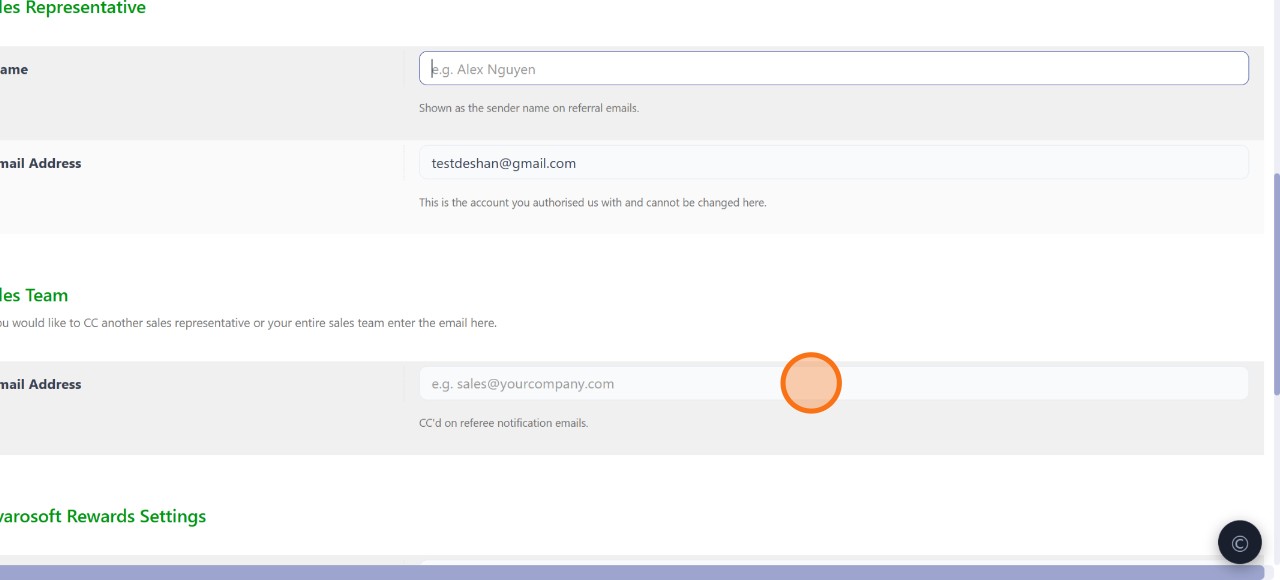
| Add your Sales Team (optional) |
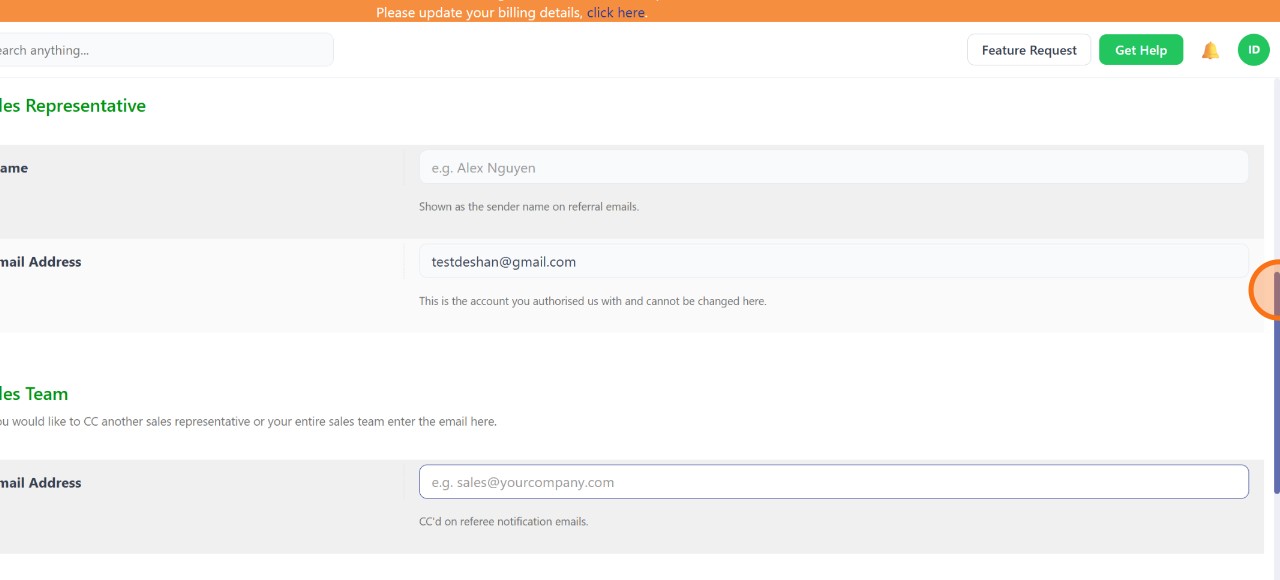
If you'd like another sales representative or your whole team copied on referral notifications, enter their email address under Sales Team.
| Configure your Rewards settings |
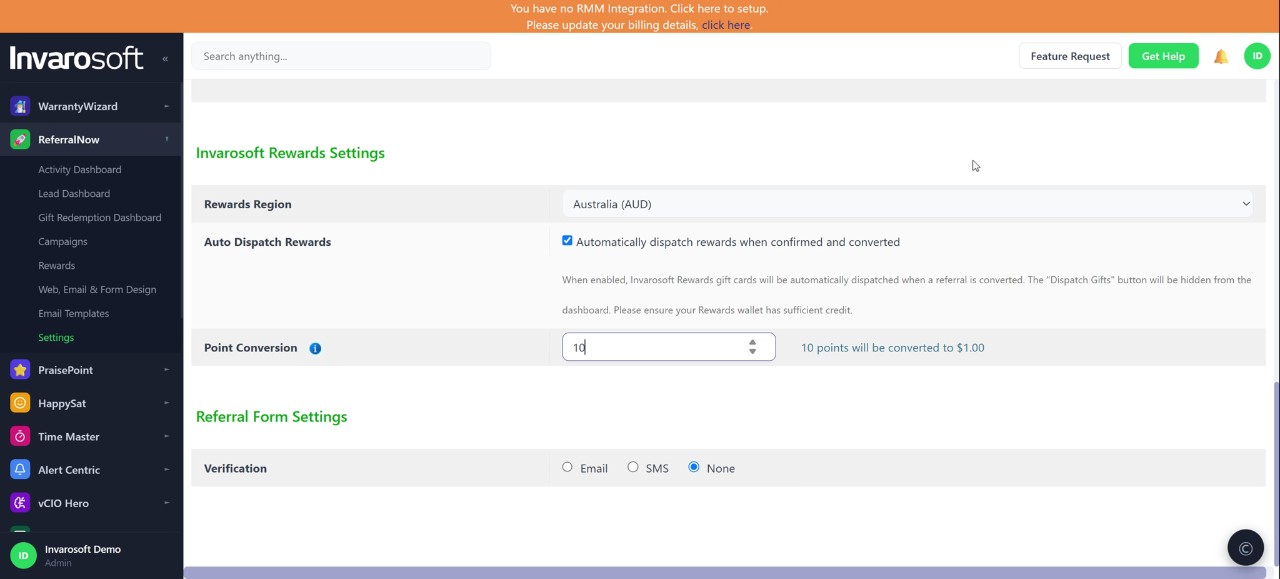
In Invarosoft Rewards Settings, choose your Rewards Region, decide whether to automatically dispatch rewards when a referral is confirmed and converted, and set your Point Conversion rate.
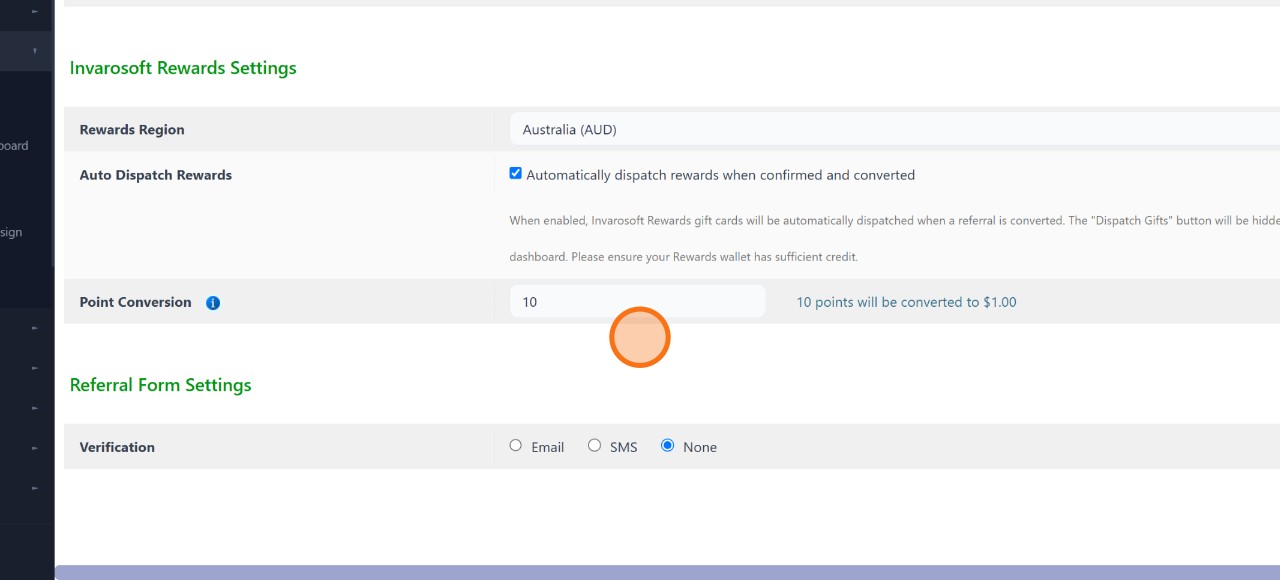
| Choose your referral form verification |
Under Referral Form Settings, select how referees are verified when they submit the form: Email, SMS, or None.
| Save your settings |
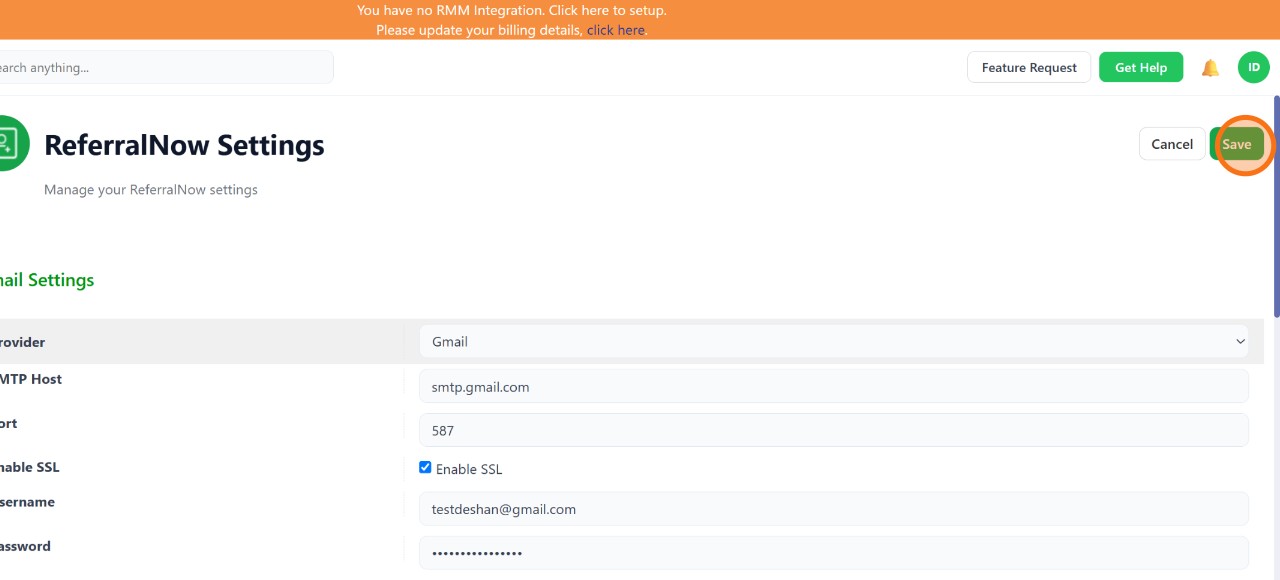
Scroll back to the top of the page and click Save to apply your changes.
| Done. Your email account is connected to ReferralNow, and referral emails will now be sent through your own address. |
Was this article helpful?
That’s Great!
Thank you for your feedback
Sorry! We couldn't be helpful
Thank you for your feedback
Feedback sent
We appreciate your effort and will try to fix the article