| ReferralNow · Rewards |
How to Create or Edit a Referral Reward in ReferralNow
ReferralNow lets you build a catalogue of rewards that motivate your clients to refer new business. From the Rewards section you can create a brand-new reward or edit one you already have. Once saved, the reward becomes available for use in your referral campaigns.
This interactive walkthrough plays on its own — sit back and watch, or use the arrows at the bottom to skip ahead or replay a step.
| Open ReferralNow |
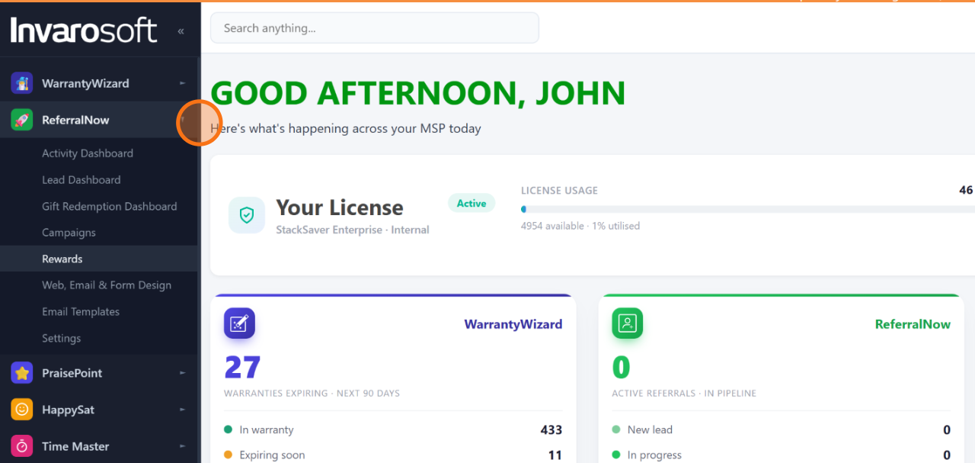
In the left-hand menu of your Invarosoft portal, click ReferralNow to open its options.
| Open Rewards |
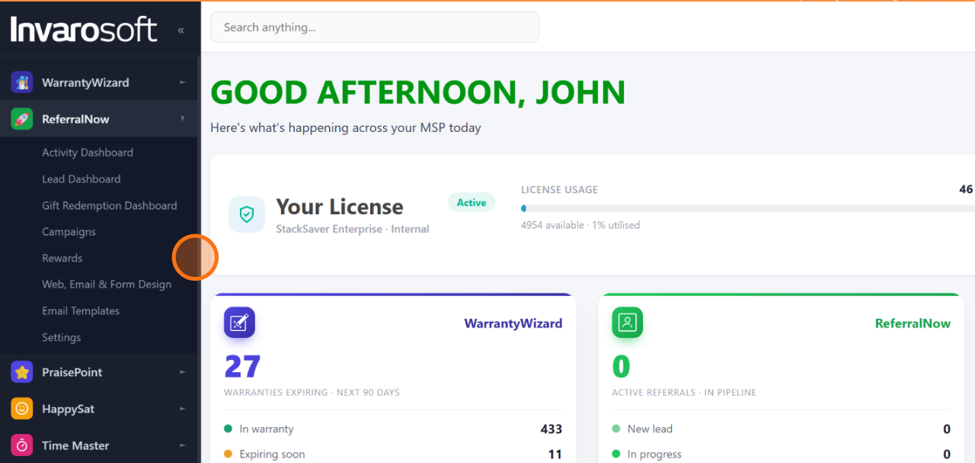
Inside ReferralNow, click Rewards to see every incentive currently available to your referral program.
| Create a new reward |
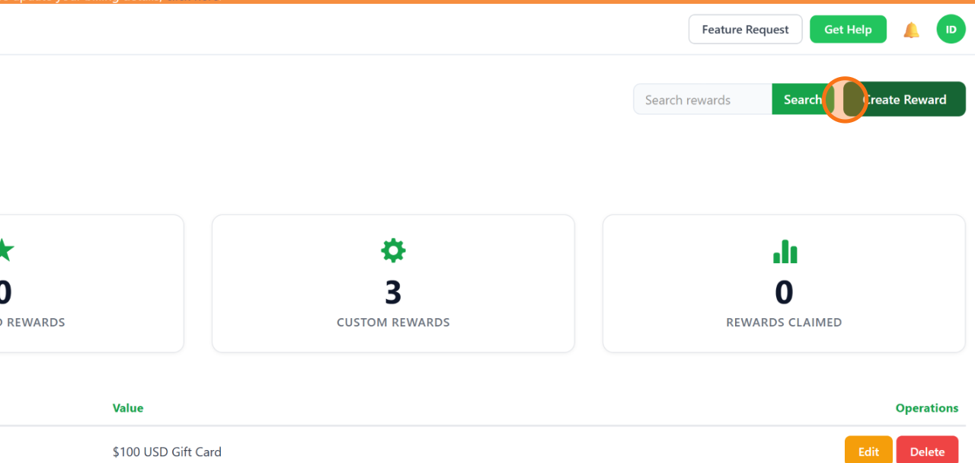
Click Create Reward in the top-right corner to start building a reward from scratch.
| Or edit an existing reward |
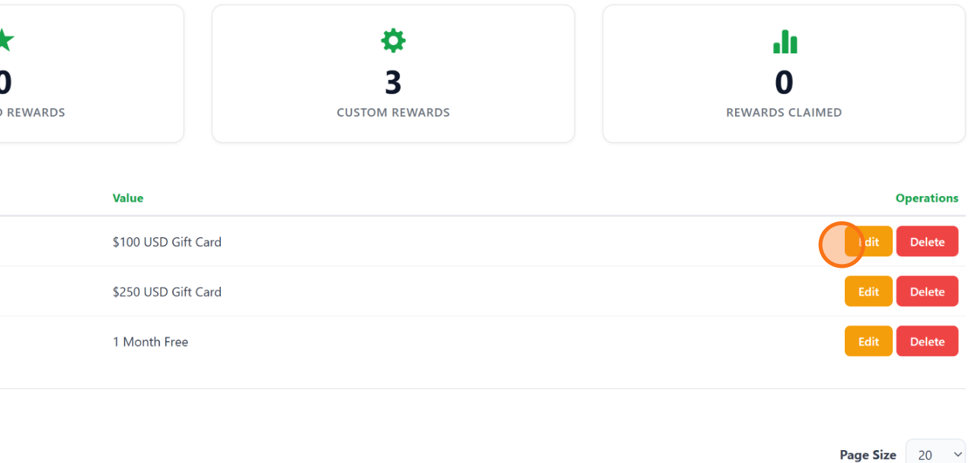
Already have a reward you want to update? Click Edit next to it in the list instead of creating a new one.
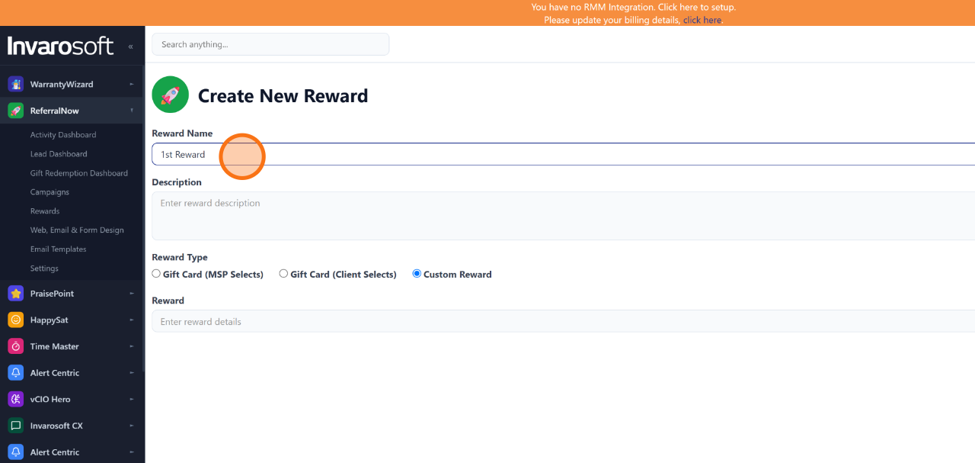
| Name the reward |
In the Reward Name field, enter a clear name your clients will recognize — for example, “$50 Amazon Gift Card”.
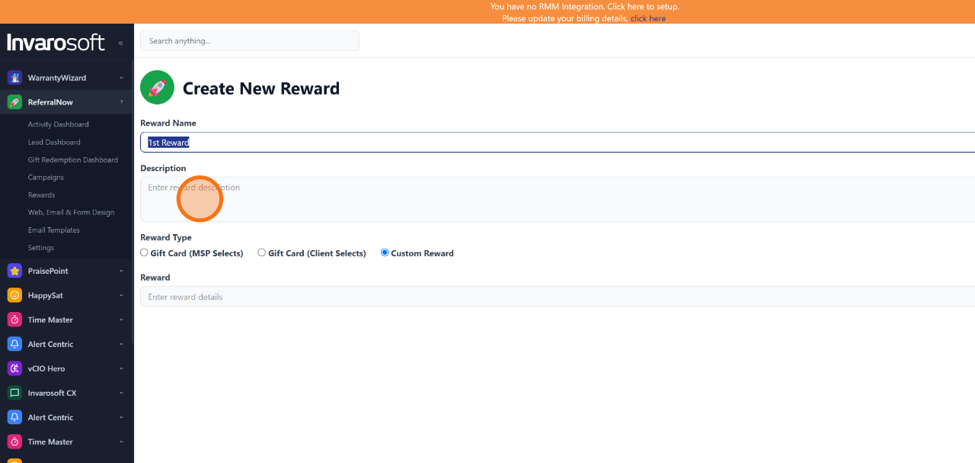
| Add a description |
Use the Description field to explain exactly what clients will earn for a successful referral.
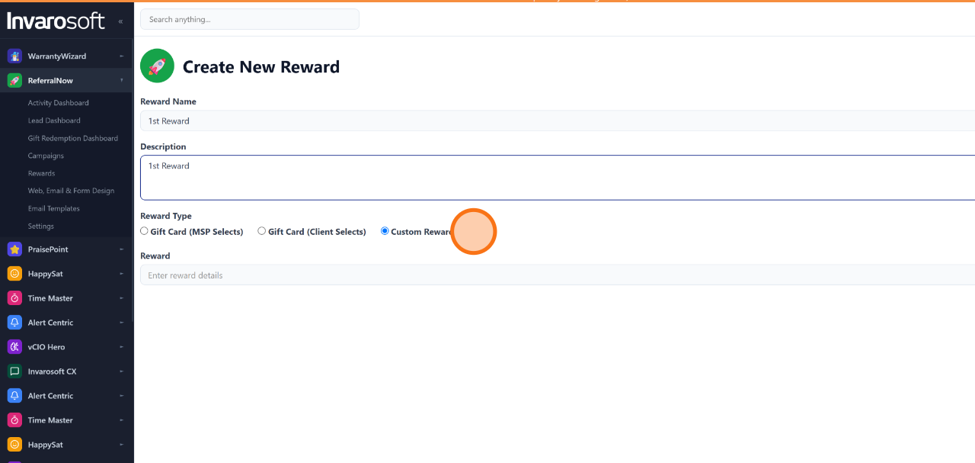
| Choose the reward type |
Under Reward Type, select Gift Card (MSP Selects), Gift Card (Client Selects), or Custom Reward, depending on how the reward will be delivered.
| Enter the reward value |
In the Reward field, specify the value or details of the reward — for example, the dollar amount of a gift card, or a short description of the custom benefit.
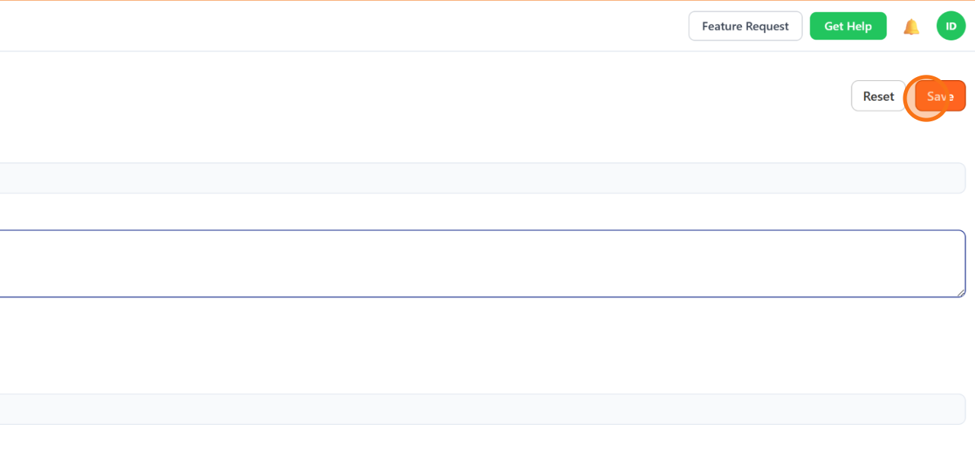
| Save the reward |
Click Save to add the reward to your catalogue.
| Done. The reward is now saved and ready to be used when you set up your next referral campaign. |
Was this article helpful?
That’s Great!
Thank you for your feedback
Sorry! We couldn't be helpful
Thank you for your feedback
Feedback sent
We appreciate your effort and will try to fix the article