| ReferralNow · Web, Email & Form Design |
How to Create or Edit a ReferralNow Appearance
An "appearance" controls how your ReferralNow program looks everywhere it shows up: your website widget, the emails ReferralNow sends, and the referral form itself. This guide walks you through building a brand-new appearance from scratch or updating one you already have — both use the exact same steps, they only start differently.
Watch it in action
This interactive walkthrough plays on its own — sit back and watch, or use the arrows at the bottom to skip ahead or replay a step.
Steps to follow
| Open Web, Email & Form Design |
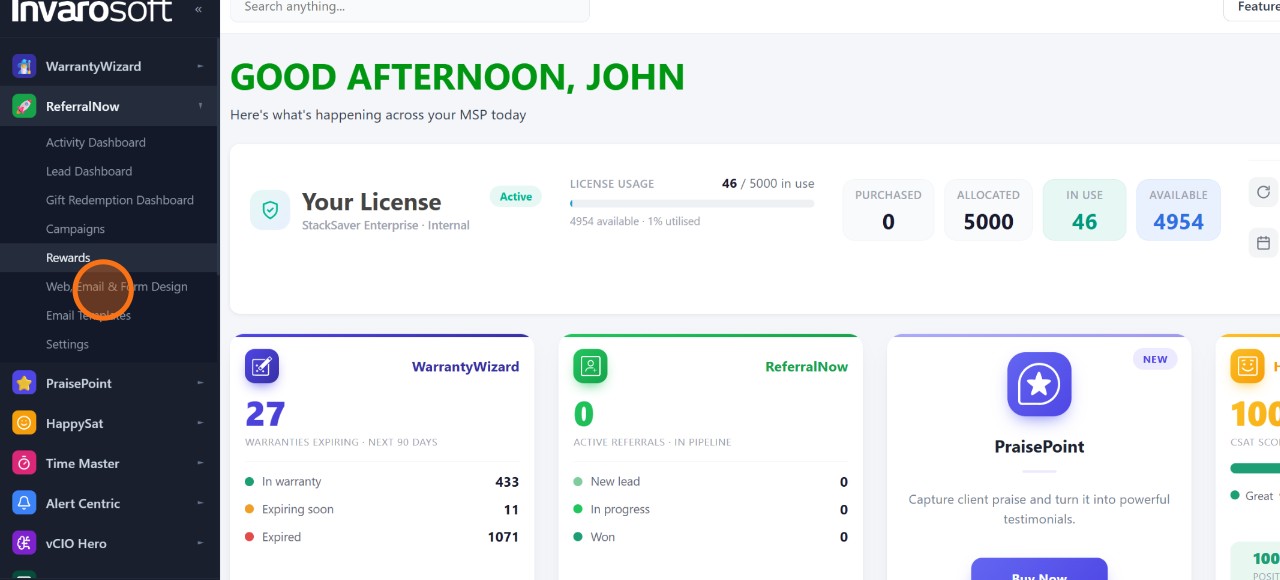
In the left sidebar, click ReferralNow to expand its menu, then select Web, Email & Form Design. This opens the Edit Appearance page.
ReferralNow → Web, Email & Form Design
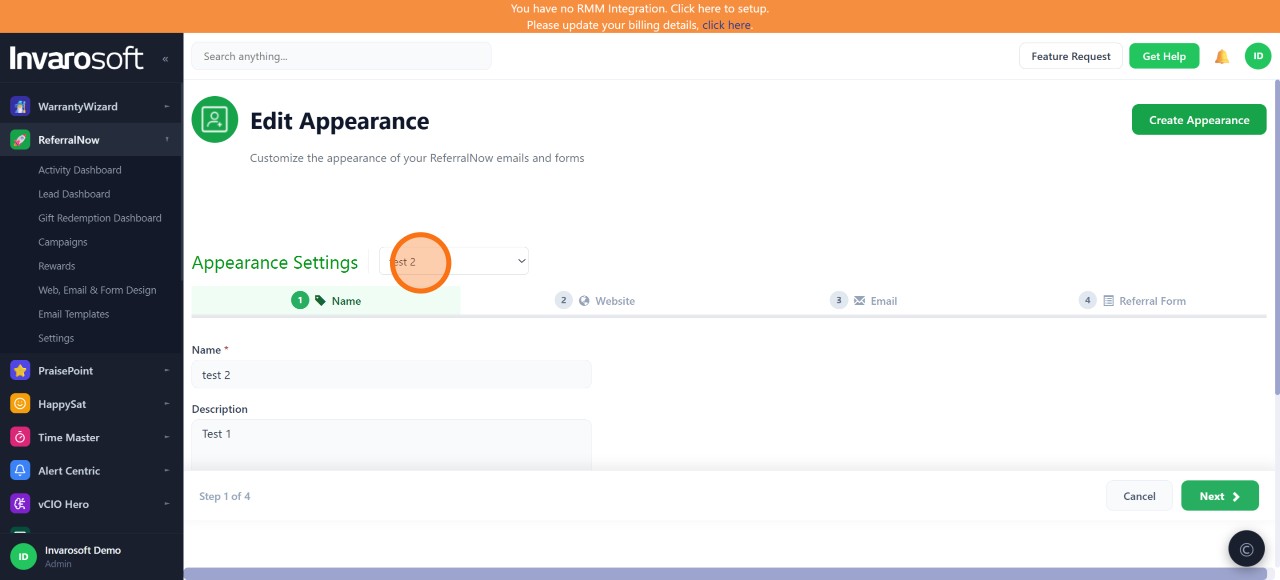
| Choose to edit an existing appearance or create a new one |
This is the only step where the two paths differ — everything after it is identical:
• To edit an appearance you already have, open the Appearance Settings dropdown and select it from the list.
• To create a new one, click Create Appearance in the top-right corner instead.
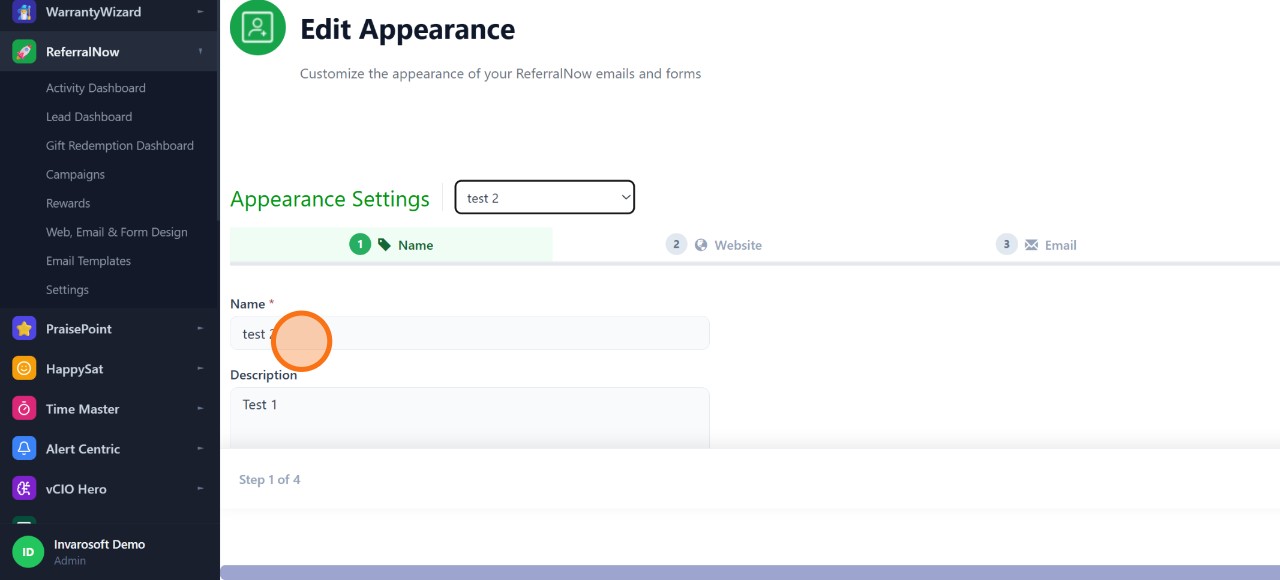
| Name the appearance (Step 1 of 4) |
Enter a Name (required) and, optionally, a Description to help you recognize this appearance later. Click Next to continue.
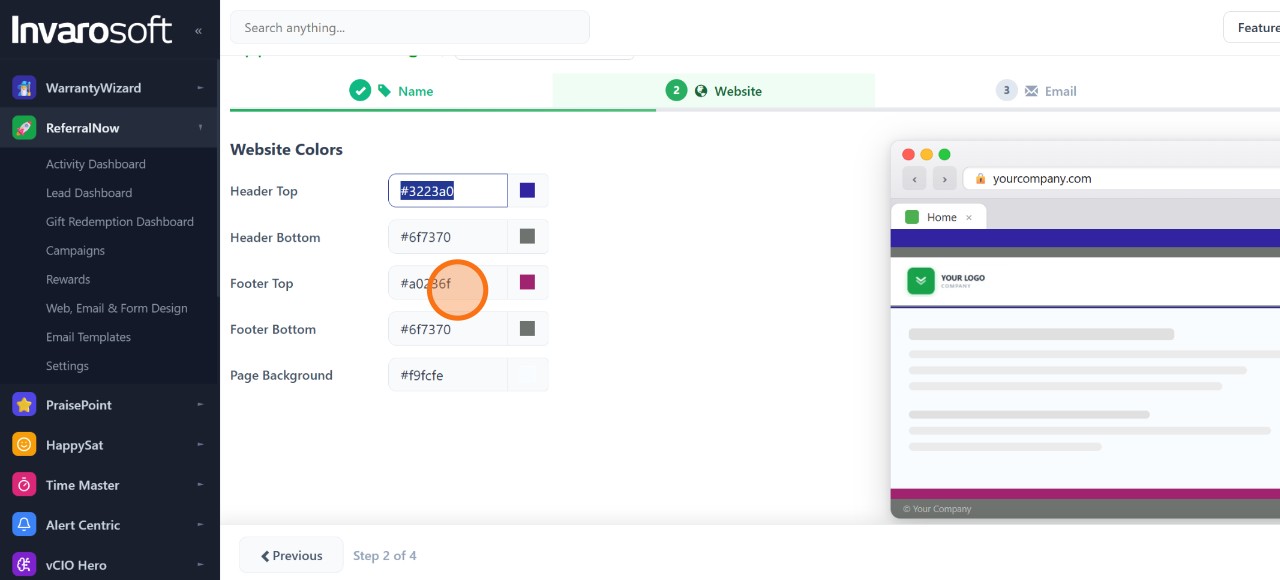
| Set the website colors (Step 2 of 4) |
Set the Header Top, Header Bottom, Footer Top, Footer Bottom and Page Background colors — type a hex code or pick one from the color swatch. The preview on the right updates as you go. Click Next when you're done.
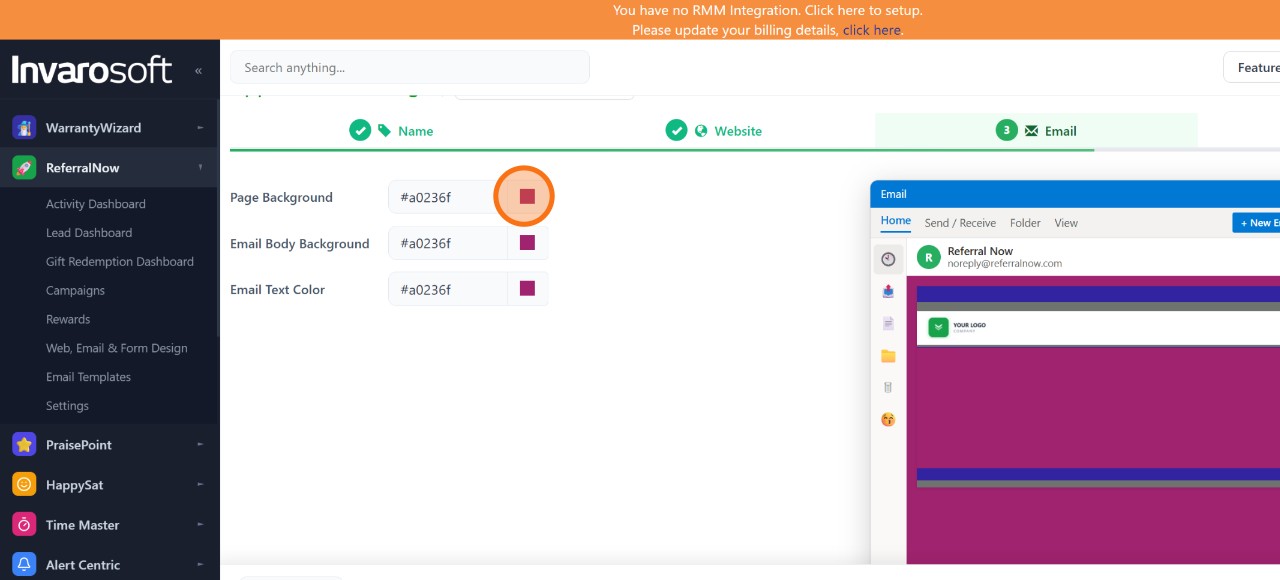
| Set the email colors (Step 3 of 4) |
Set the Page Background, Email Body Background and Email Text Color for the emails ReferralNow sends. Click Next to move on to the referral form.
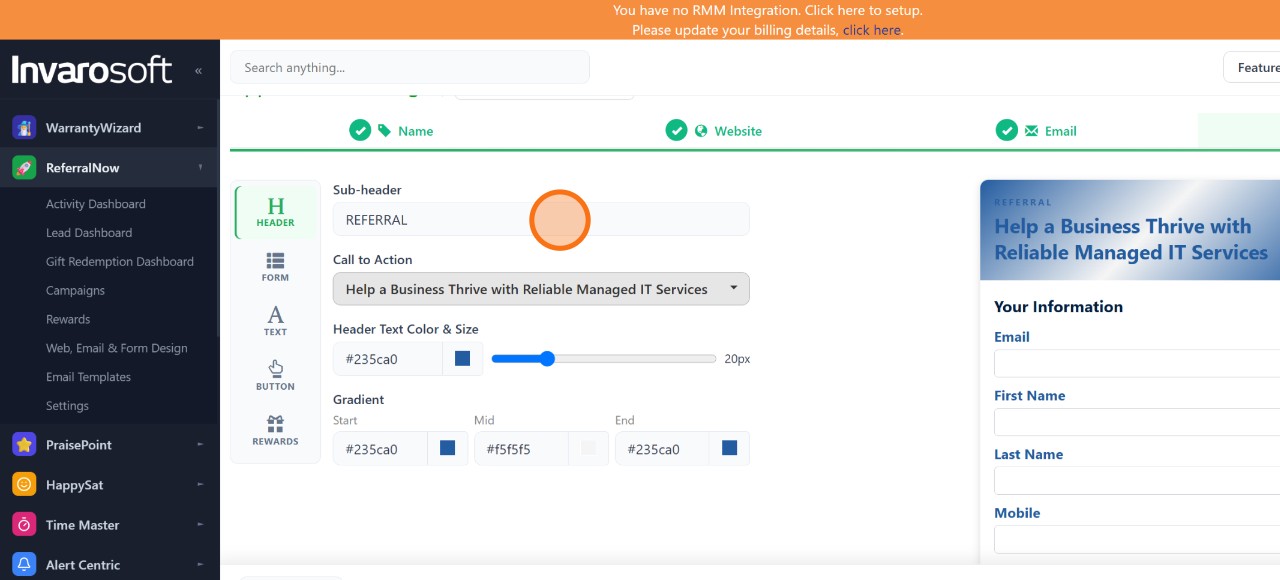
| Set up the referral form header (Step 4 of 4) |
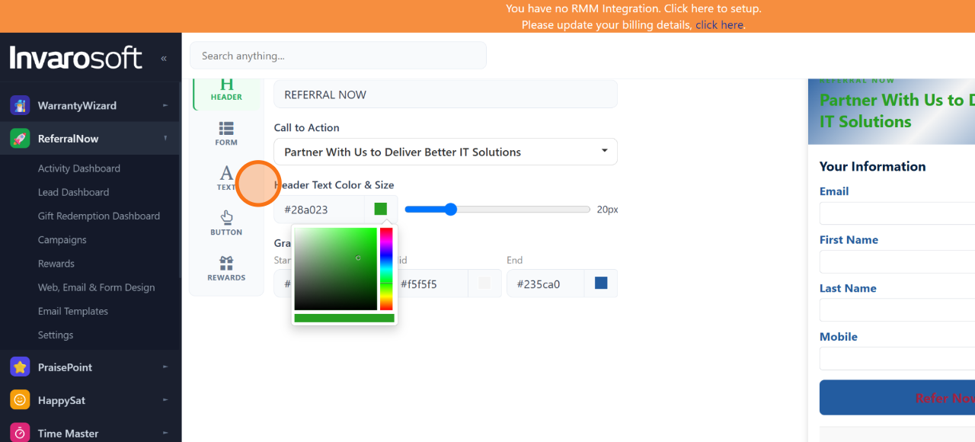
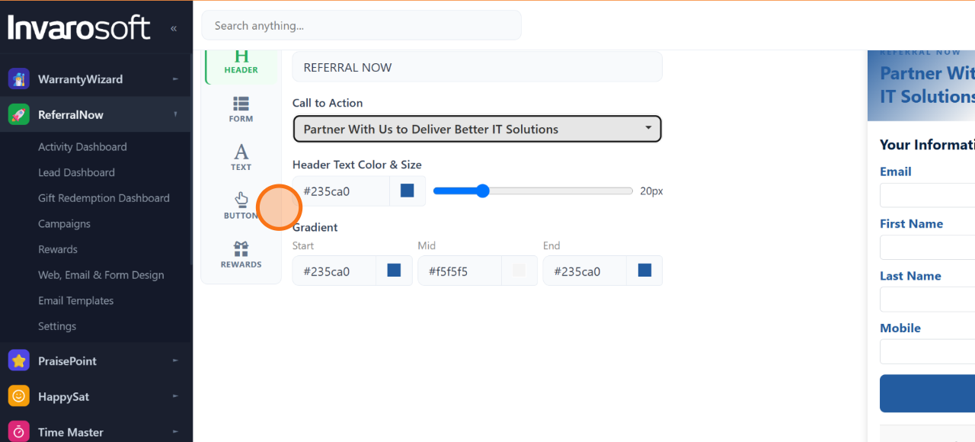
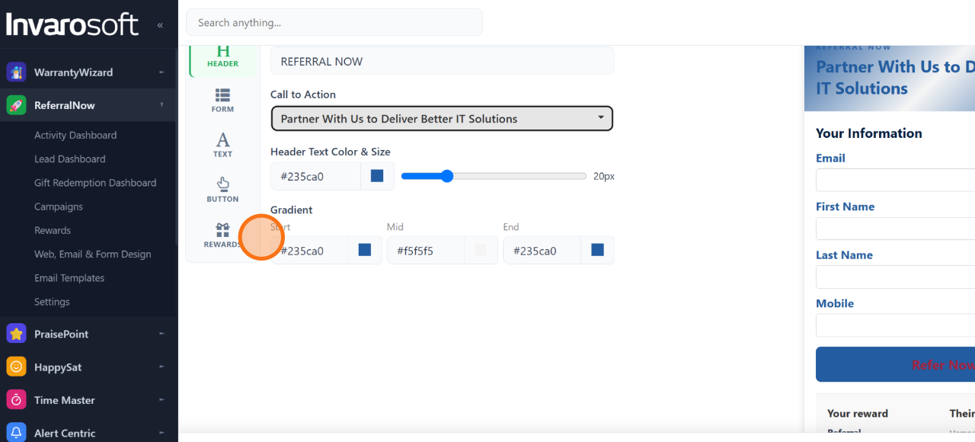
This last step has its own set of sections on the left (Header, Form, Text, Button, Rewards). Starting with Header: set the Sub-header text, the Header Text Color & Size, and the Gradient (Start, Mid and End colors) behind the headline.
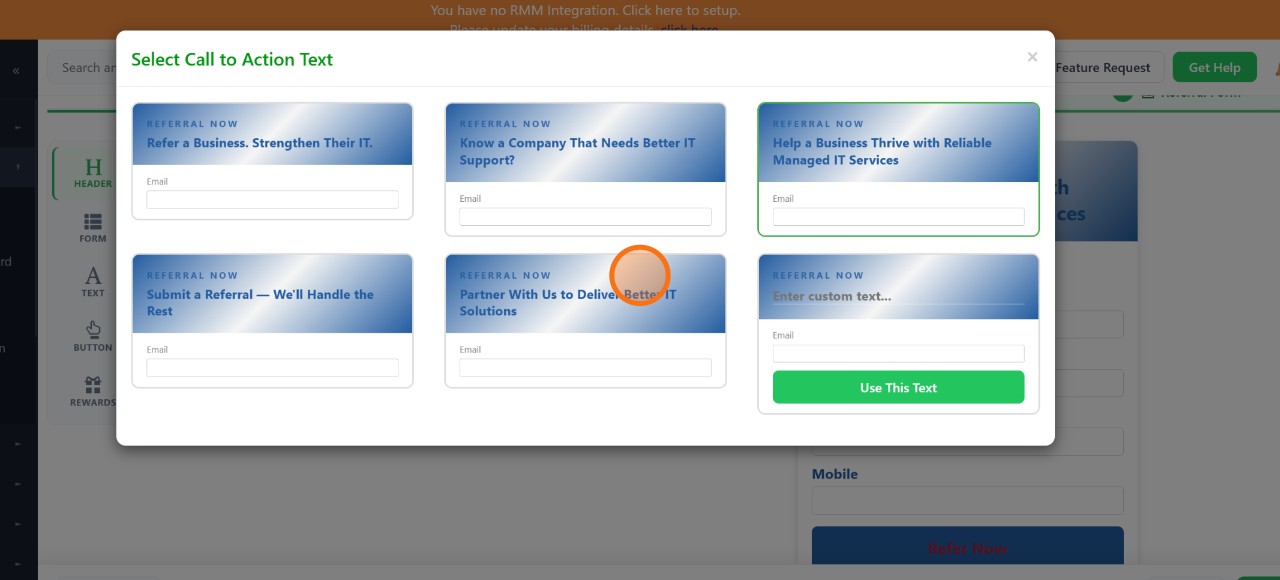
| Choose a Call to Action headline |
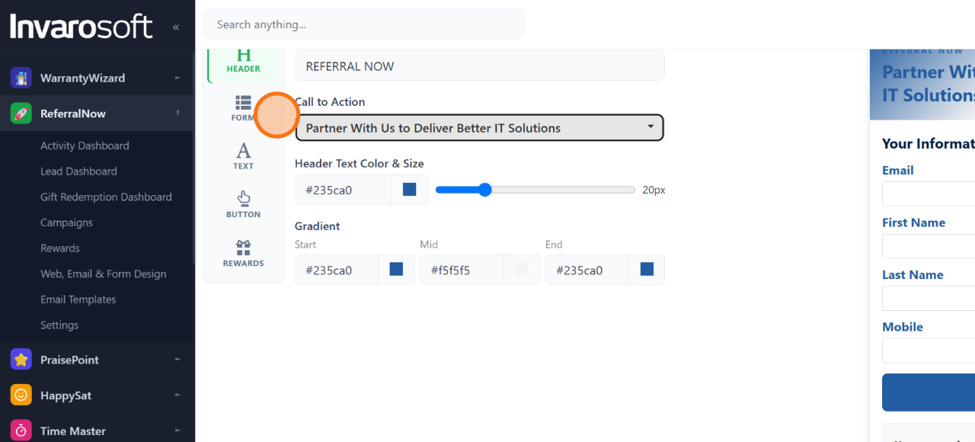
Click the Call to Action field to open a gallery of ready-made headlines. Pick the one you like, or choose Enter custom text... to write your own, then click Use This Text.
Switch to the Form section on the left rail and set the Background Color for the referral form itself.
Switch to the Text section and set the color and size of the Primary Text and Secondary Text used throughout the form.
Switch to the Button section and set the Button Color and the Button Text color and size for the form's call-to-action button.
| Set the reward title style |
Switch to the Rewards section and set the color and size of the Reward Title shown on the form.
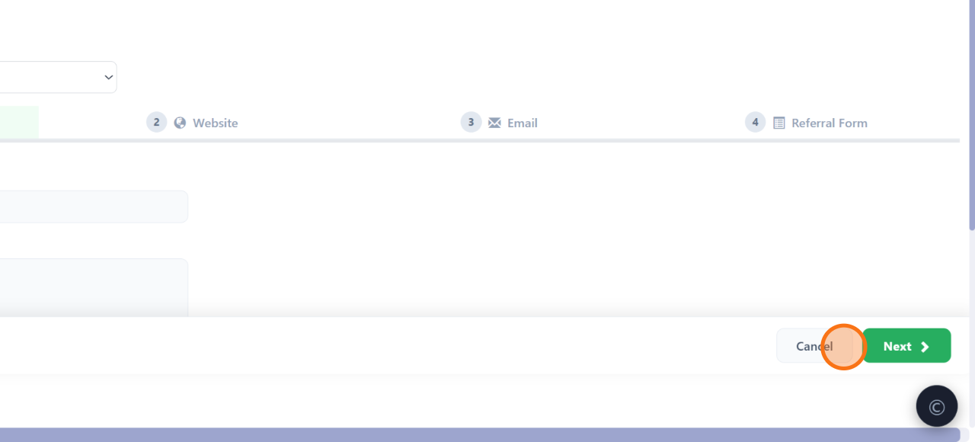
Once everything looks the way you want, click Save. This is the same button and the same action whether you started from Create Appearance or from an existing appearance in the dropdown.
Result
| Done. Your appearance is saved and ready to use across your ReferralNow website widget, emails and referral form — whether it was brand new or an update to one you already had. |
Invarosoft · ReferralNow documentation