-->
| ReferralNow · Email Templates |
How to Create an Email Template in ReferralNow
Email Templates is where ReferralNow's system emails live — the notifications sent to referrers and clients throughout the referral process. This guide walks you through building a new template from scratch: naming it, writing the subject, laying out the content in sections, and personalizing it with dynamic fields like the client's or referrer's name.
This interactive walkthrough plays on its own — sit back and watch, or use the arrows at the bottom to skip ahead or replay a step.
| Open Email Templates |
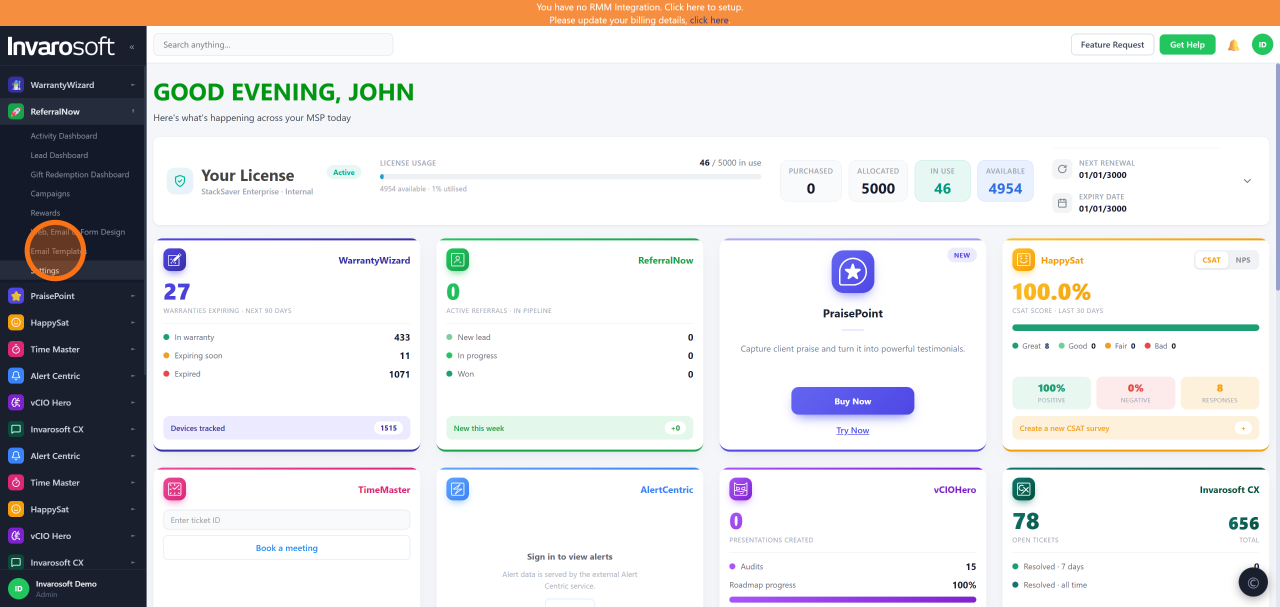
In the left sidebar, under ReferralNow, click Email Templates to open the templates hub.
| Choose which notification to work on |
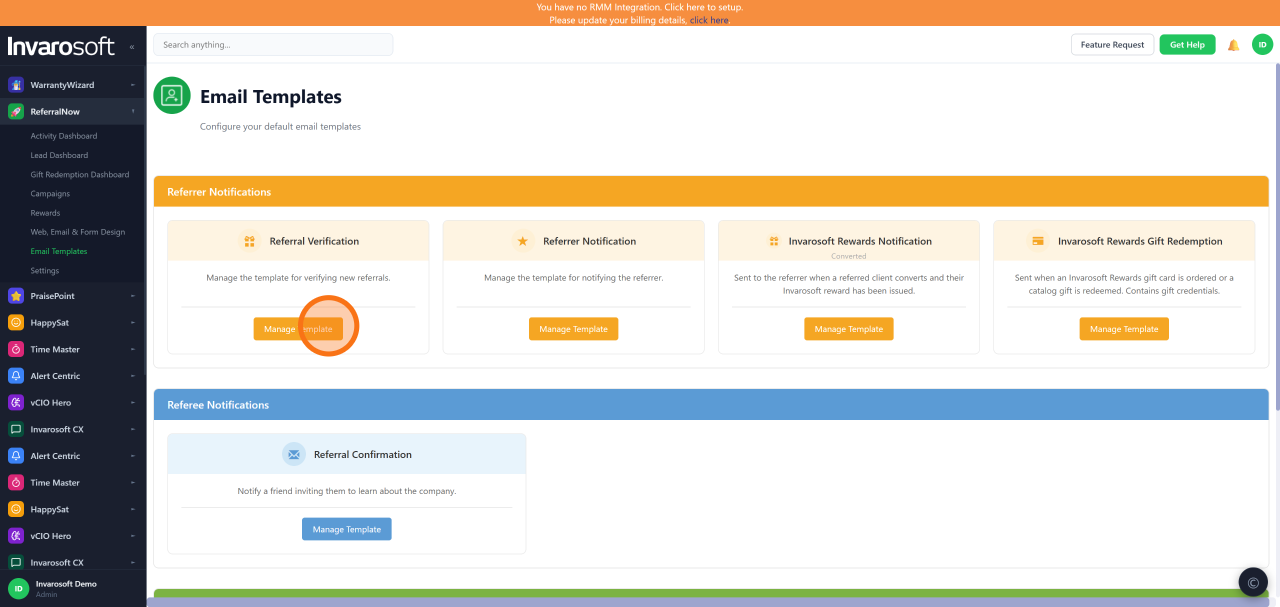
Email Templates lists every system email ReferralNow can send (Referral Verification, Referrer Notification, Invarosoft Rewards Notification, and more). Click Manage Template under the one you want to work on — this example uses Referral Verification.
| Create a new template |
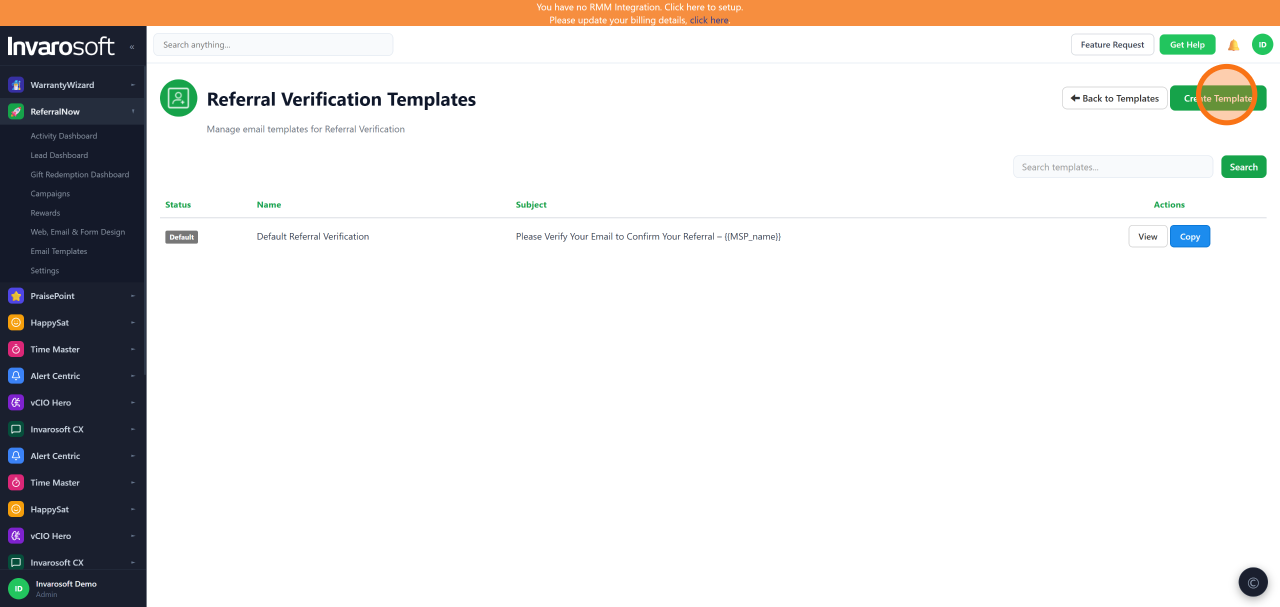
On the templates list for that notification, click Create Template to start a new one from scratch.
| Name the template |
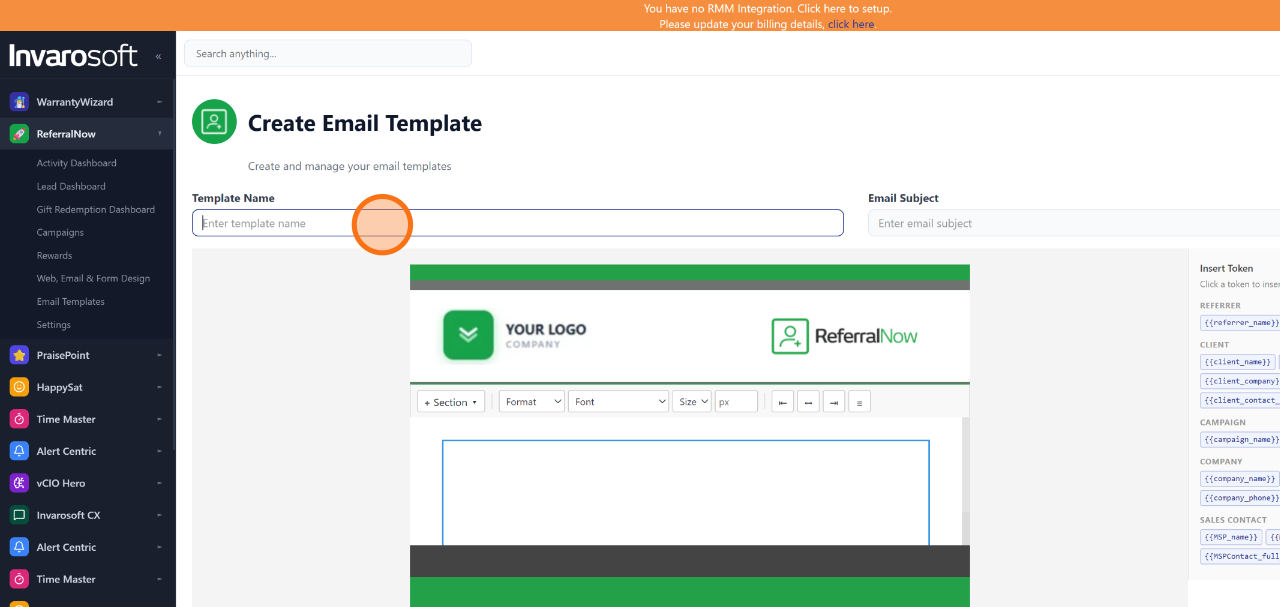
In Template Name, type a clear name so you can find and reuse it later.
| Write the subject line |
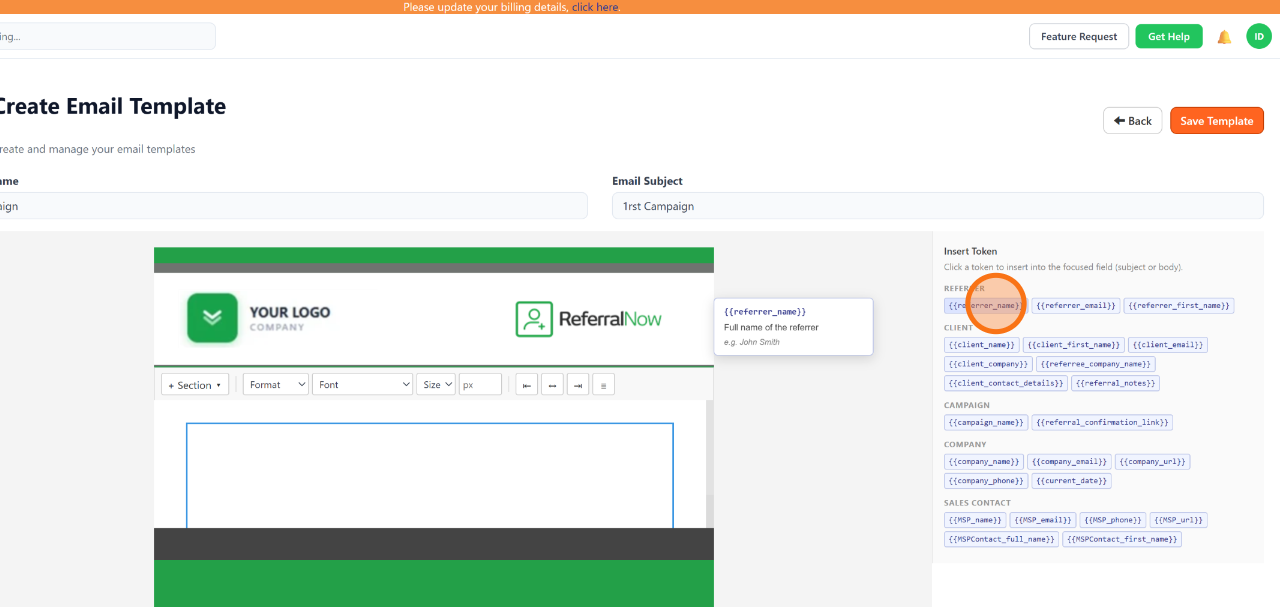
Click into Email Subject and type your text. To personalize it, click any token in the Insert Token panel on the right (like {{referrer_name}}) — it drops in at your cursor. Tokens are grouped by Referrer, Client, Campaign, Company, and Sales Contact info.
| Build the email body with sections |
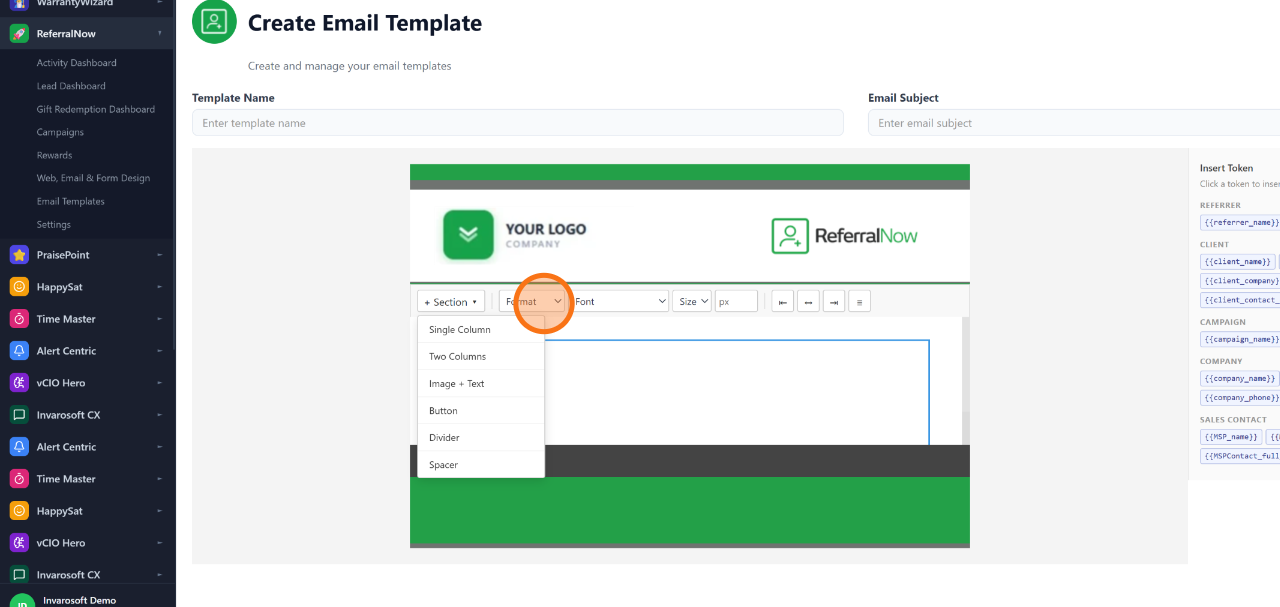
Click + Section to add a content block, then use Format to choose its layout: Single Column, Two Columns, Image + Text, Button, Divider, or Spacer. Add as many sections as you need to structure the email, and use Font and Size to style the text in each one.
| Personalize the body with dynamic fields |
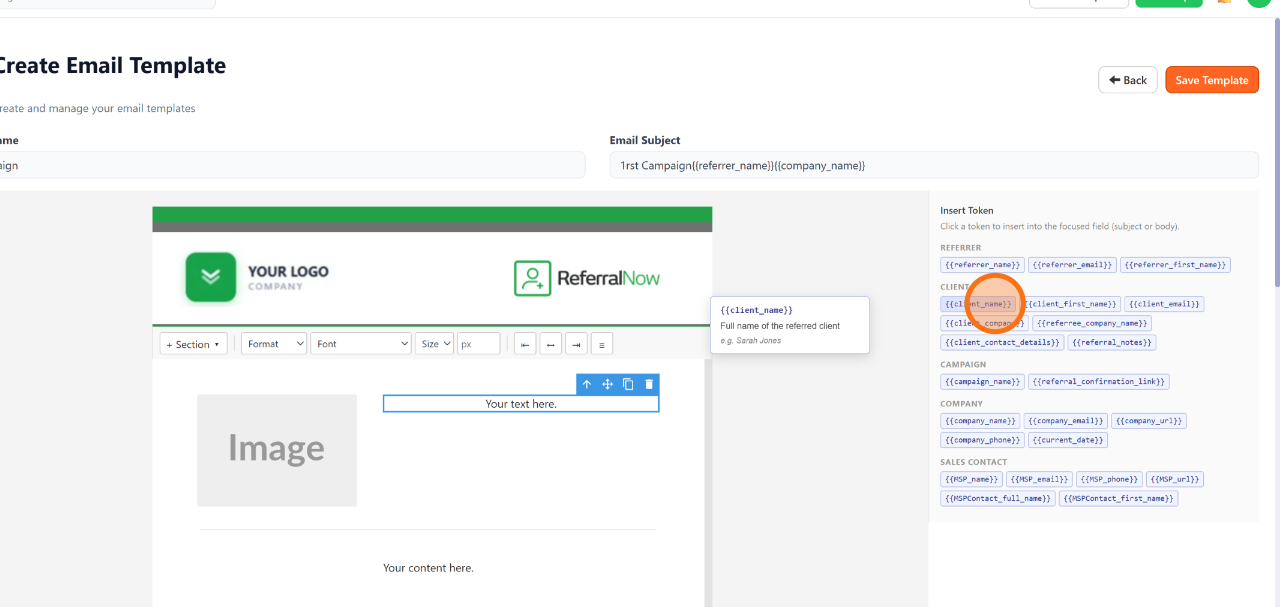
Click into any text block in the body, then click a token from the Insert Token panel — like {{client_name}} — to auto-fill it with the real recipient's information whenever the email is sent.
| Save the template |
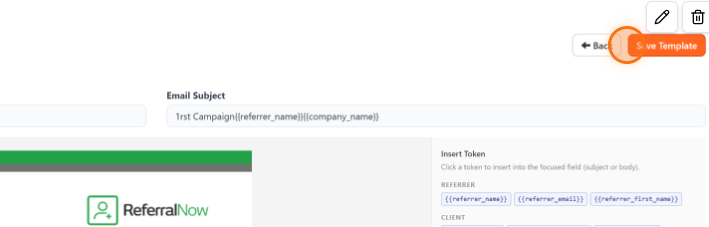
Once the template looks right, click Save Template in the top-right corner.
| Done. Your email template is saved and will be used the next time this notification goes out, with every token auto-filled for each recipient. |
Was this article helpful?
That’s Great!
Thank you for your feedback
Sorry! We couldn't be helpful
Thank you for your feedback
Feedback sent
We appreciate your effort and will try to fix the article