How to Edit HTML Within the Platform
This guide explains how to view, copy, and edit HTML content within the platform, whether you are working in vCIO, Web Forms, or Custom Pages.
Where to find the HTML
Depending on the module, the field name will change, but the process is exactly the same. Locate the correct section based on where you are working:
- vCIO — Go to vCIOHero -> Templates -> Presentation templates, Button Edit, and then find the section called Outline Content

- Web Forms — Go to CX Invarosoft -> IT Support Panel -> Forms -> Webforms. Button Edit and then locate the field called Instructions

- Documents — Go to CX Invarosoft -> IT Support Panel -> Client Portal-> Custom pages. Button Edit and then locate the field called Body

Step 1 — How to open the HTML editor
- Inside the corresponding field, find the button labeled < />
- Click on this button

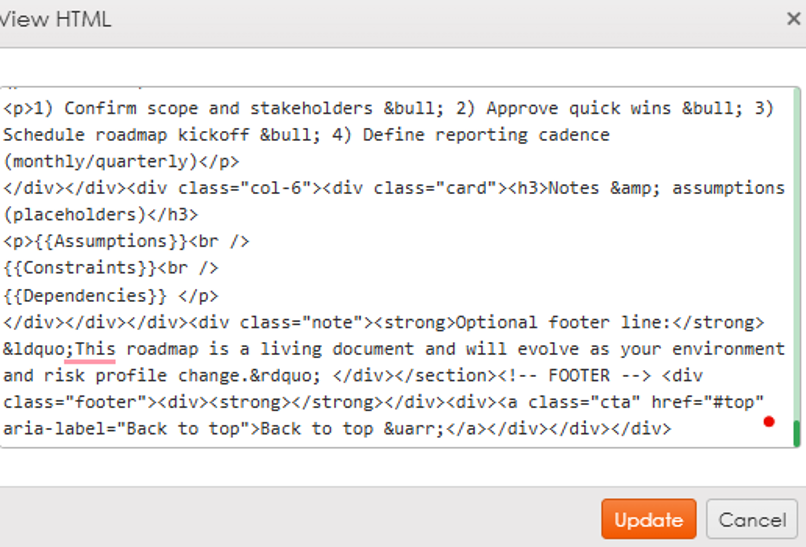
- A new window will open. If the document already contains content, the HTML code will be displayed. If the document is empty, the window will be blank, so you can skip Step 2 and proceed directly to Step 3.
Step 2 — How to copy the existing HTML
If you already have information here and need to edit the content:
- Inside the < /> window, select all the code
- Press Control + C to copy it
- Paste it wherever you plan to edit it.
Step 3 — How to create or edit the HTML
You are not expected to edit code manually. The recommended approach is to use an AI tool of your choice.
To edit, you can use prompts like:
- I have this HTML and I want to change the colors to blue and green
- I have this HTML and I want to add a new section with rounded borders
- I want to improve the design of this HTML while keeping the same structure
- I want to add more information in card format inside this HTML
To create, you can use prompts like:
I need to create a page using HTML only, without CSS. Please help me design a clean and modern layout for the following information. Even without CSS, I want the structure to feel organized, professional, and visually clear.
Use simple HTML elements such as headings, paragraphs, tables, spacing, and sections to create a well structured and easy to read layout.
These are the colors I would like to reflect in the design:
[INSERT YOUR COLORS HERE]
This is the type of presentation I am aiming for:
[DESCRIBE STYLE, FOR EXAMPLE modern dashboard, card based layout, executive summary, clean sections, etc.]
Here is the information to include:
[PASTE YOUR CONTENT HERE]
Make sure the result:
- Uses only HTML, no CSS
- Is easy to copy and paste into another system
- Keeps everything in a single page
- Looks structured and professional even with basic styling
You can also use this resource as a reference: https://www.youtube.com/watch?v=vHUvypQyMrw
Step 4 — How to upload the updated HTML
Once your HTML is ready:
- Go back to the field you were working on
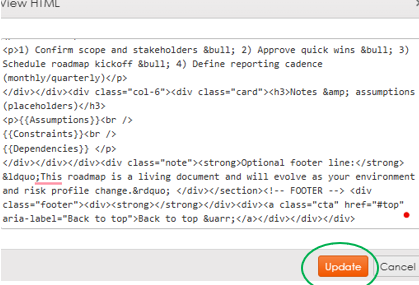
- Click again on < />
- Delete the current content
- Paste your updated HTML
- Click on Update
⚠️ Important Recommendations
- Use simple HTML
- Avoid complex structures
- Everything must stay within a single page
- Multiple pages are not supported
- You can move elements freely as long as they remain within the same document
Summary
The process is always the same:
Was this article helpful?
That’s Great!
Thank you for your feedback
Sorry! We couldn't be helpful
Thank you for your feedback
Feedback sent
We appreciate your effort and will try to fix the article