| MyITPortal · Tickets |
How to View Closed Tickets on the Portal
By default, the Ticket View in the client portal only shows your open tickets. This guide shows you how to filter by year and quarter and turn on closed tickets, so you can review any ticket that has already been resolved.
This interactive walkthrough plays on its own — sit back and watch, or use the arrows at the bottom to skip ahead or replay a step.
| Open Tickets |
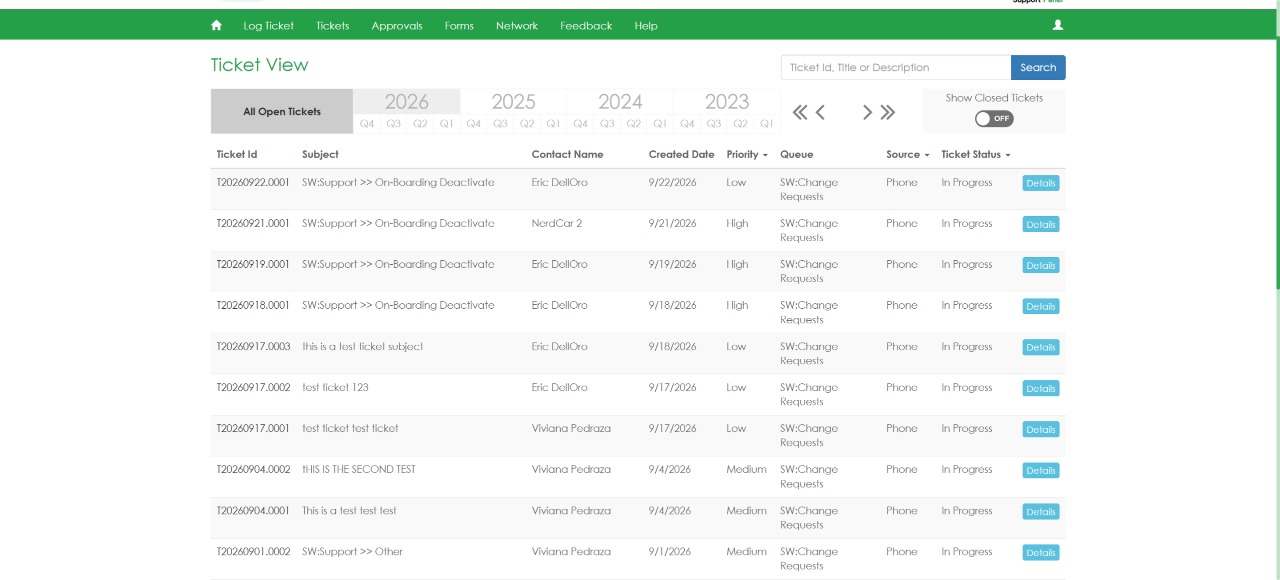
From the top menu of the client portal, click Tickets. The Ticket View page opens, showing all your open tickets by default.
| Select a period |
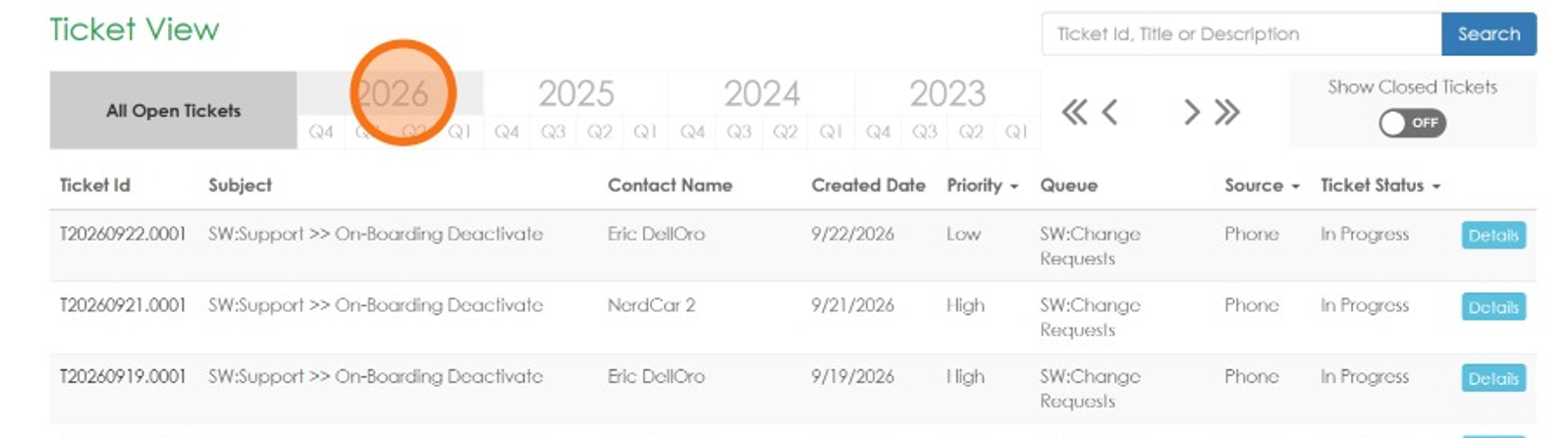
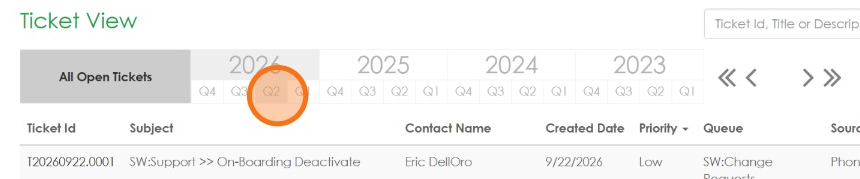
In the period bar at the top of the list, click either a year (for example, 2026) or a specific quarter under it (for example, Q2). The list shows only the tickets from that period.
| Turn on Show Closed Tickets |
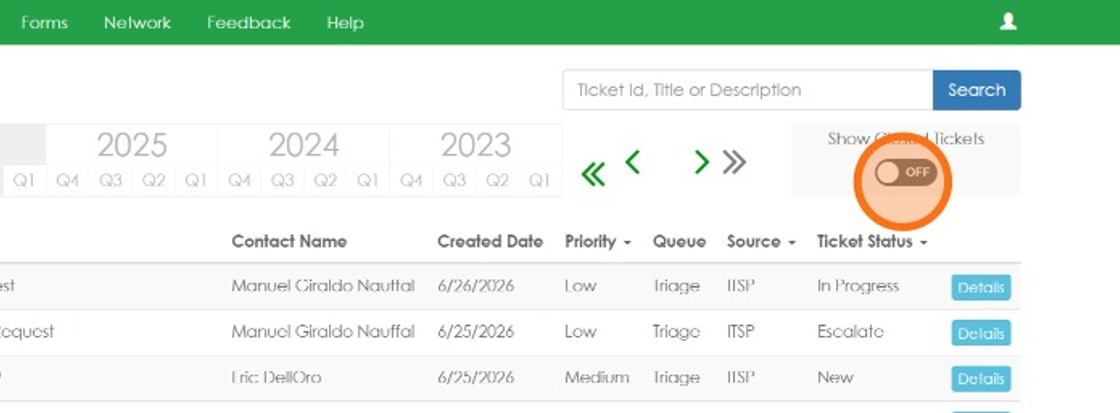
On the right side of the period bar, switch the Show Closed Tickets toggle to ON. Closed tickets (for example, those with status Complete) are now included in the list.
| Browse any period |
With the toggle on, click any other year or quarter (in this example, Q3 2025) to see the closed tickets from that period. Use the arrows next to the period bar to move to older years.
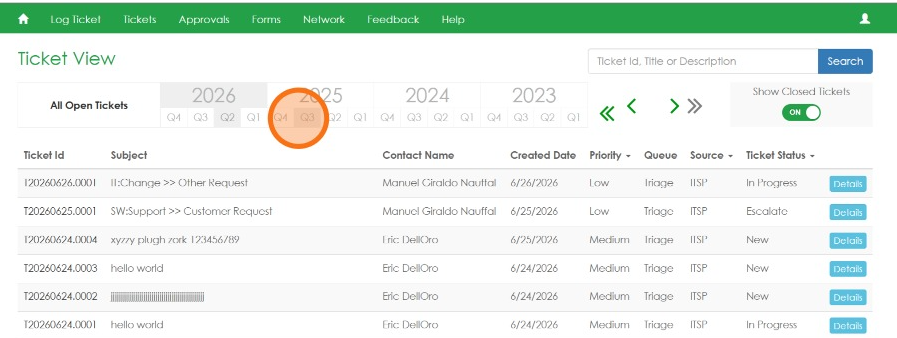
| Done. You can now review the closed tickets from any year or quarter directly in the portal. |
Was this article helpful?
That’s Great!
Thank you for your feedback
Sorry! We couldn't be helpful
Thank you for your feedback
Feedback sent
We appreciate your effort and will try to fix the article